
Adapt Your Materials with CARL Beta
Take a worksheet, reading or lesson you already have and change it for your class. Lower the reading level, add scaffolds, translate it, build an answer key. CARL proposes each change, you compare it with your original, and you decide what goes in.
You bring something you already have: a worksheet, a reading, a lesson plan. You say what needs to change. CARL reads it, proposes the change, and waits. You compare it to your original and decide.
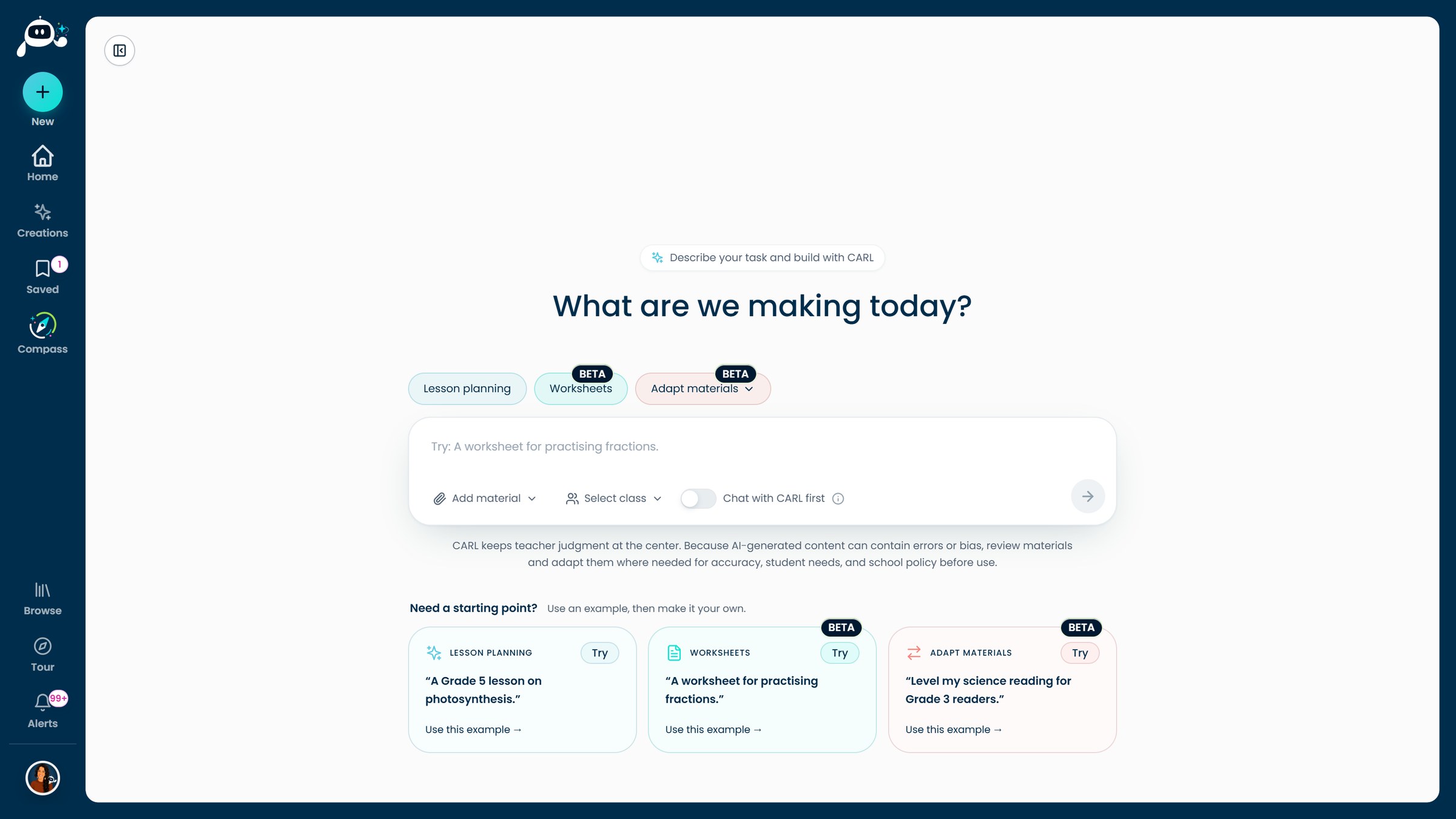
Adapt materials sits next to Lesson planning and Worksheets on the Create page. Click to enlarge.
On the Create page, open Adapt materials. The menu asks how you would like to adapt it. Picking a tool fills the request box with a starting prompt you can edit.
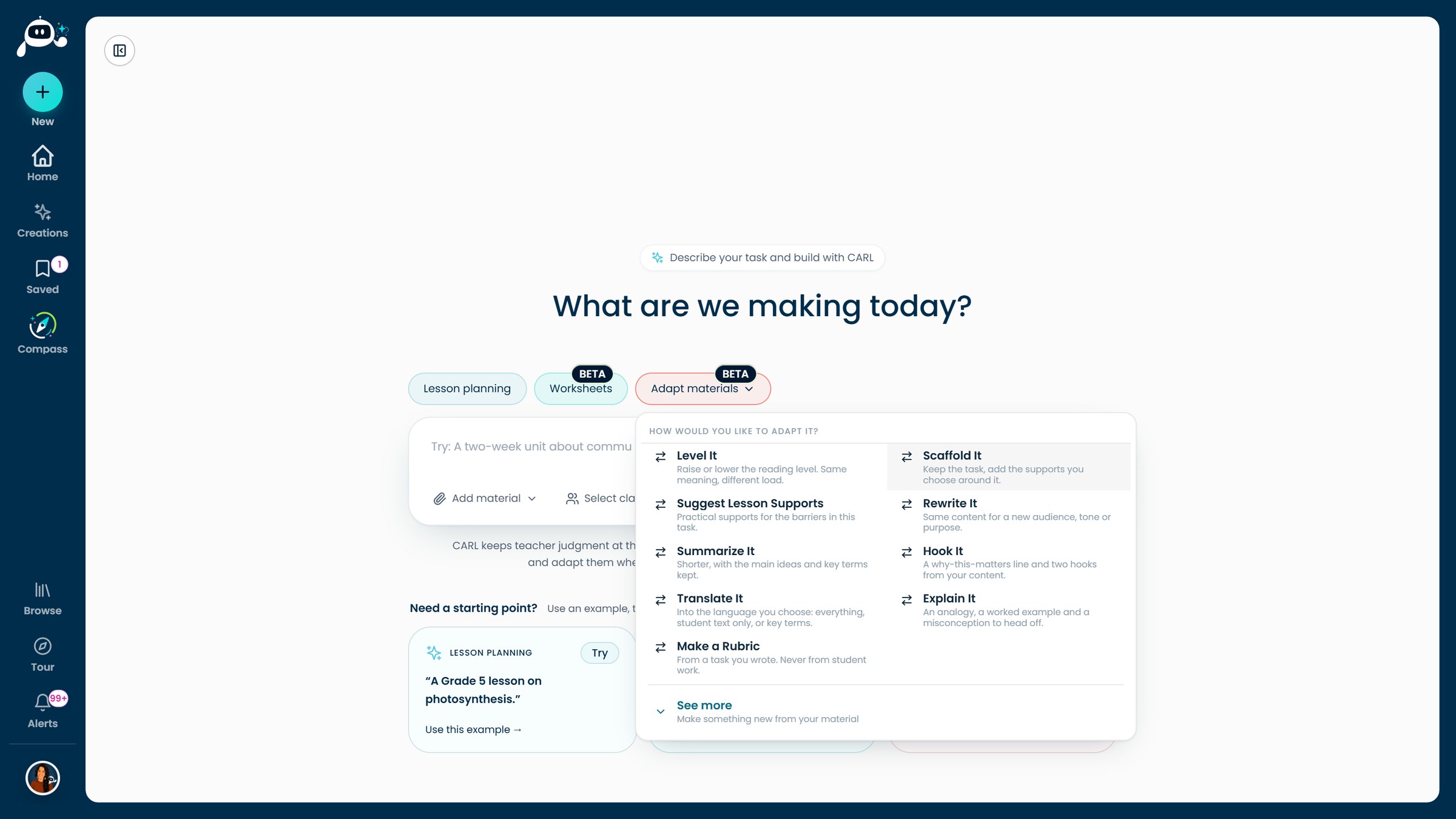
The Adapt menu. Choose See more for the make-something-new set. Click to enlarge.
- Level ItRaise or lower the reading level. Same meaning, different load.
- Scaffold ItKeep the task, add the supports you choose around it.
- Suggest Lesson SupportsPractical supports for the barriers in this task.
- Rewrite ItSame content for a new audience, tone or purpose.
- Summarize ItShorter, with the main ideas and key terms kept.
- Hook ItA why-this-matters line and two hooks from your content.
- Translate ItInto the language you choose: everything, student text only, or key terms.
- Explain ItAn analogy, a worked example and a misconception to head off.
- Make a RubricFrom a task you wrote. Never from student work.
- Question ladderDOK or Bloom’s climb, from recall to extended thinking.
- Vocabulary cardsFrayer cards for the key terms.
- Exit ticketTen formats, filled from this content.
- Graphic organizerThe right shape for the thinking.
- Writing framesOptional frames for the language the task asks for.
- Discussion protocolQuestions plus the routine to run the talk.
- Warm-up / Do-NowA five-minute opener from a lesson you choose.
- ReflectionLesson, unit or portfolio reflection.
- Answer keyOn a separate teacher page: an answer key for closed questions, suggested responses for open ones.
Use Add material to bring in what you want changed. You can add:
- A file: PDF, Word, PowerPoint, Excel or CSV, text or Markdown, or a photo.
- Pasted text.
- A website you scan.
- A YouTube link.
- A Compass plan you have saved.
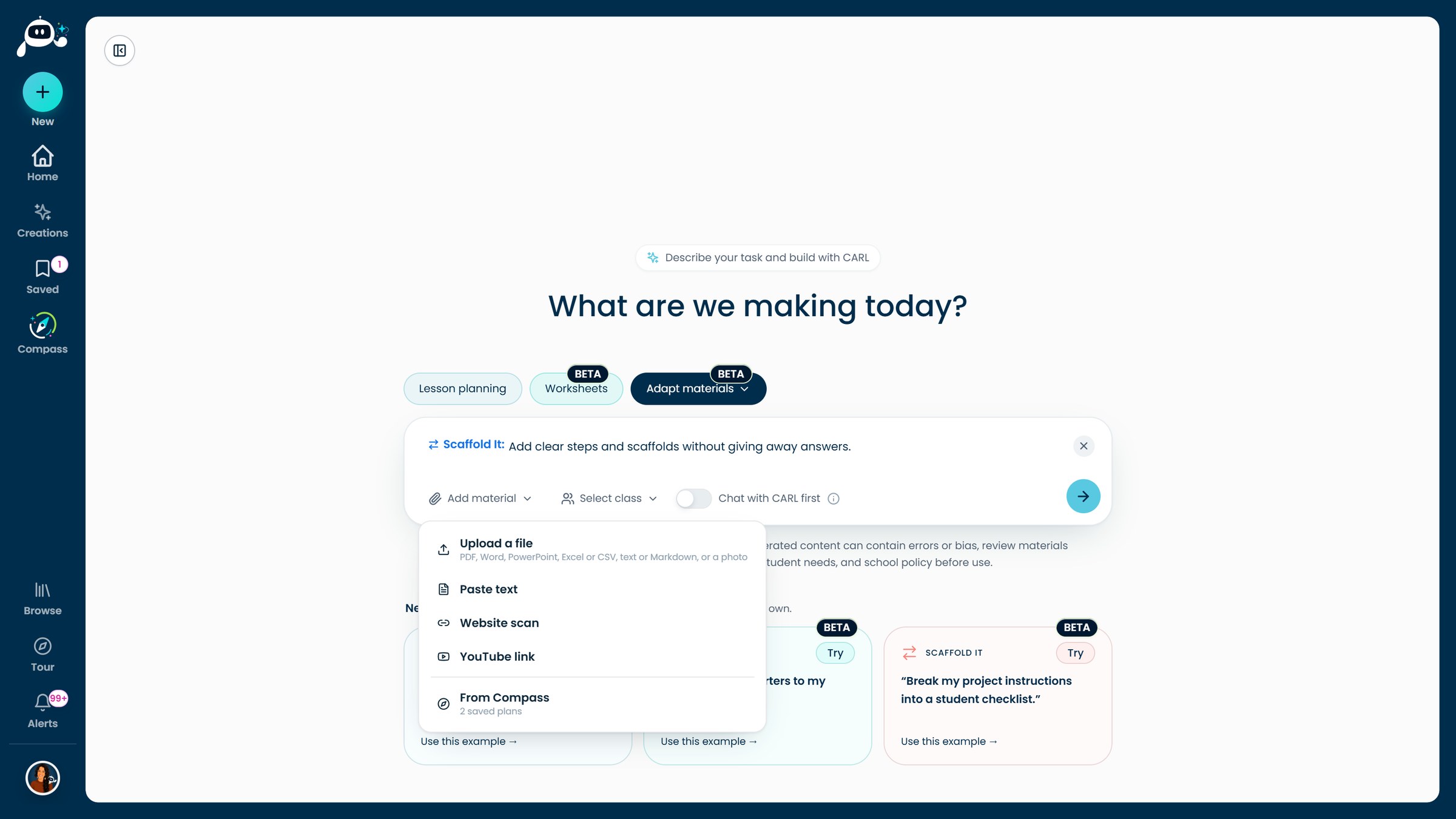
Add material offers five ways in. Click to enlarge.
CARL asks you to confirm that you are allowed to use the material. The prompt says to upload only materials you created, have permission to use, or are authorized to use, and to leave out student names, student work, family information, and anything that could identify a specific student.
If you want a new worksheet made from one you have, rather than a change to it, that is a related route. On Create, choose the Worksheets chip and add your worksheet as material. The quick guide walks through it.
Type the change in plain language. CARL reads the document first and tells you the biggest barrier it sees before it plans anything.
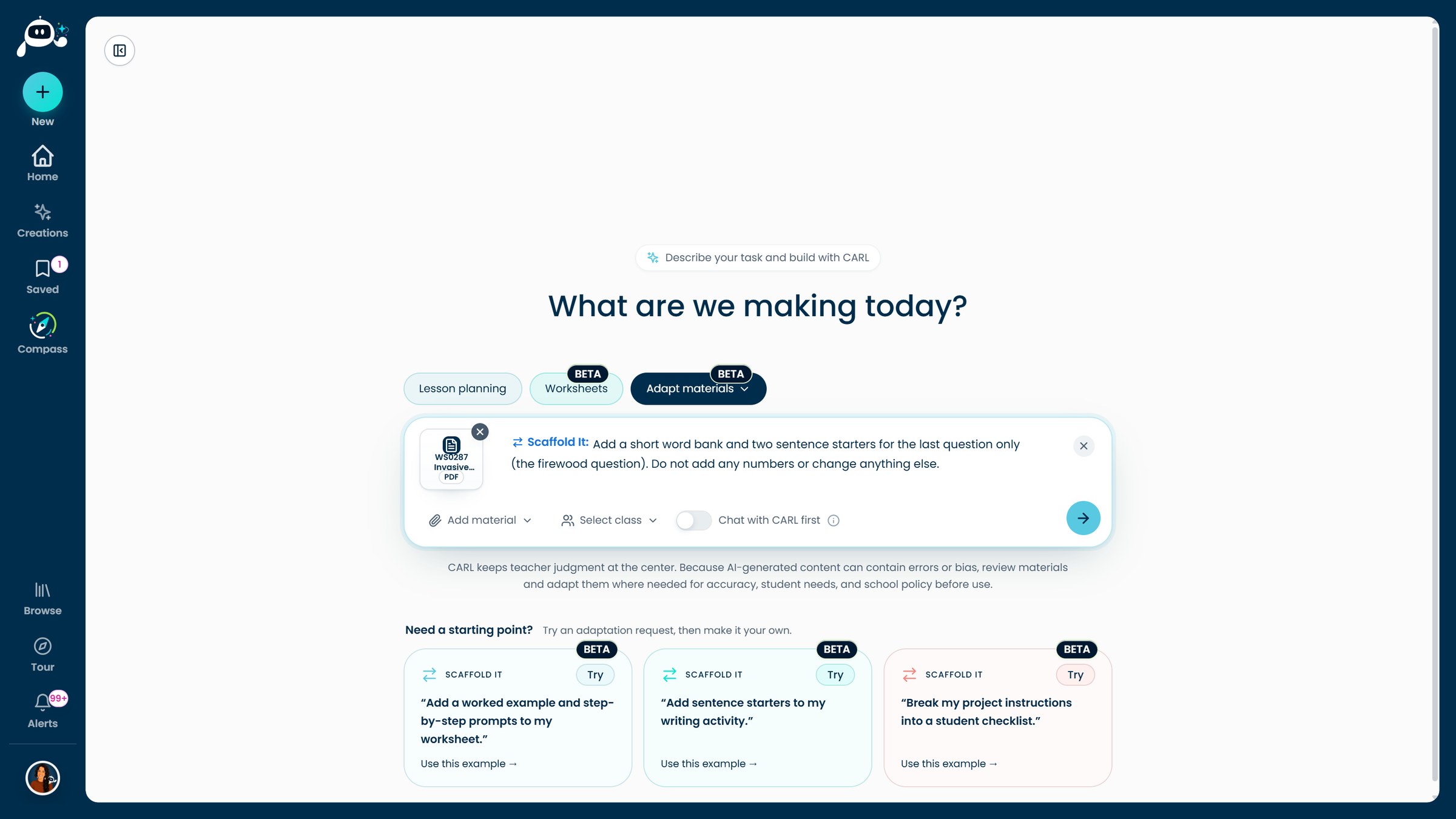
Material attached, tool chosen, request written. Your request replaces the starting prompt. Click to enlarge.
- “Add a short word bank and two sentence starters for the last question only. Do not add any numbers or change anything else.”
- “Lower the reading level to about Grade 4 for the intro paragraph and the table only. Keep every species and fact the same.”
- “Translate the student worksheet into French. Student material only, keep the layout.”
Then CARL works through four steps you can watch in the chat: Plan, Change, Check and Preview. A short, targeted change took us about a minute or two. Changes across a whole worksheet, like levelling or translating a full table, took four to five minutes.
CARL proposes a change instead of making it, and the proposal appears next to your original with three views: Proposed, Original and Compare.
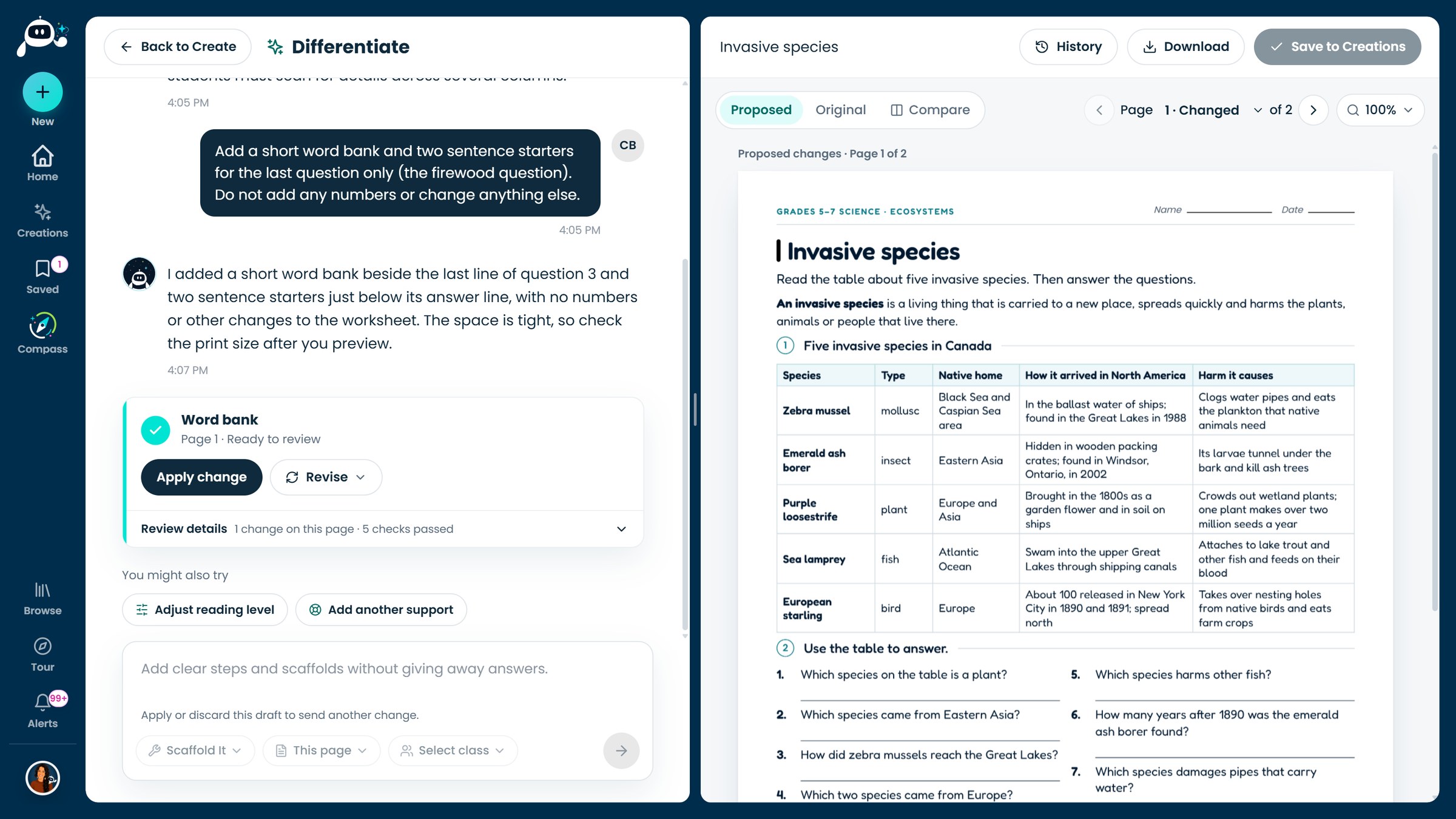
The proposal card says how many changes it makes and how many checks passed. Click to enlarge.
Open Review details to read each change in full. Under the details is a list of what CARL checked, for example No new figures, No added answer section and Source numbers kept. Compare shows your page and the proposed page side by side, with each change numbered.
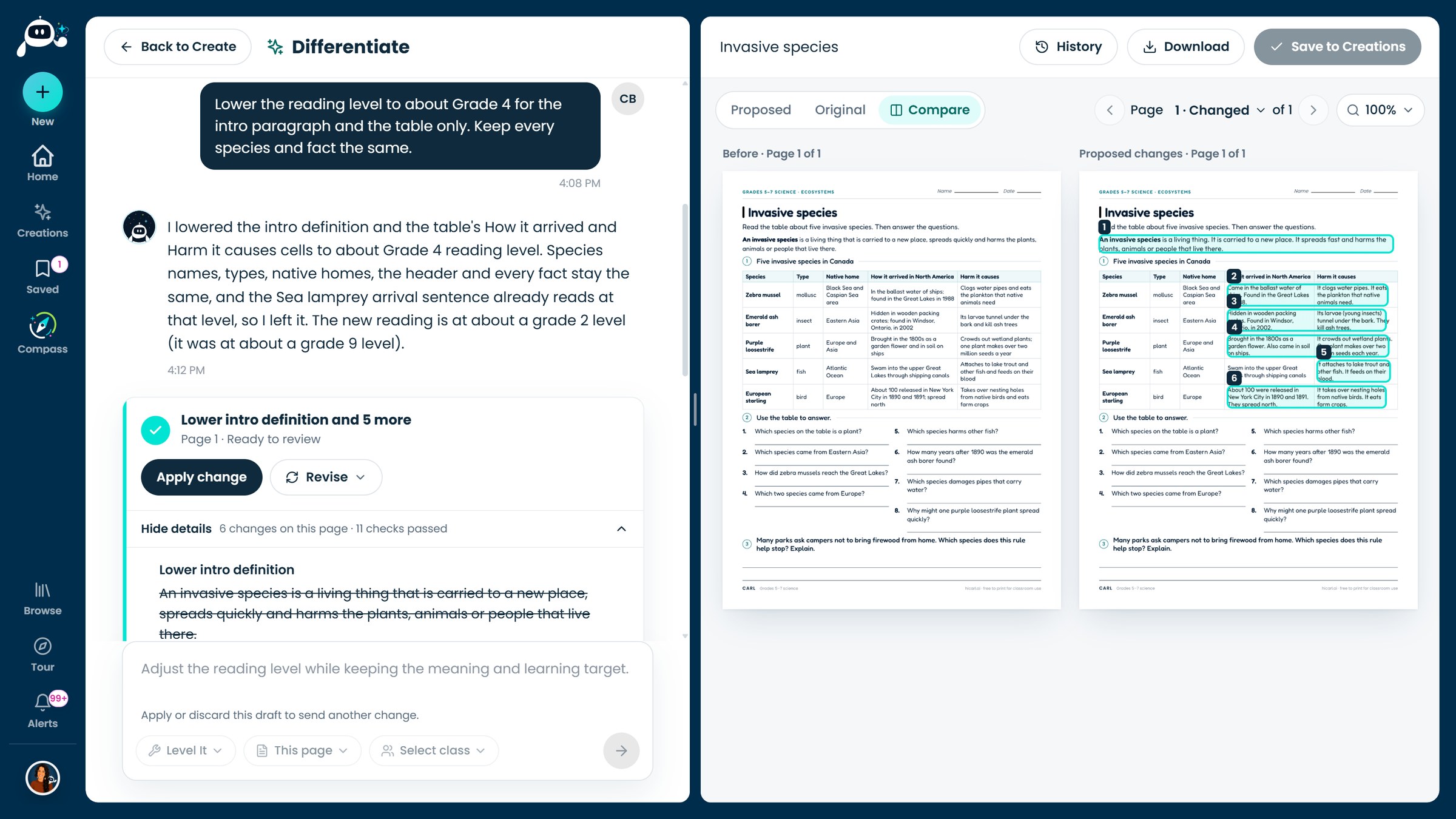
Compare, on a reading-level change: six numbered changes in the intro and table. Click to enlarge.
Read the wording and the layout yourself before you apply.
You have three choices on the proposal card.
- Apply change puts it into your working document. CARL confirms that it was applied.
- Revise is there when the proposal is close but not right.
- Discard it if it is not what you wanted. Your original stays as it was.
Apply or discard a proposal before you send the next request. Changes stack, so you can level the reading first, then add the scaffold. The workspace also has History, Download and Save to Creations for when you want to keep the result.
All five ran on one real worksheet from the CARL library: Invasive species, a Grades 5 to 7 science sheet with a five-row reference table, eight questions and a short-answer question about firewood.
We asked for about Grade 4 on the intro and the table. CARL reworked the intro definition and the table cells, kept every species and fact, and reported where it landed: from about a Grade 9 reading level to about Grade 2. A cell went from In the ballast water of ships; found in the Great Lakes in 1988 to Came in the ballast water of ships. Found in the Great Lakes in 1988. It does not always land on the target (an earlier run on a different sheet came back at about Grade 6 when we asked for Grade 4), so ask again if you need it closer. The grade is CARL’s own estimate, so read the language and the task demands yourself.
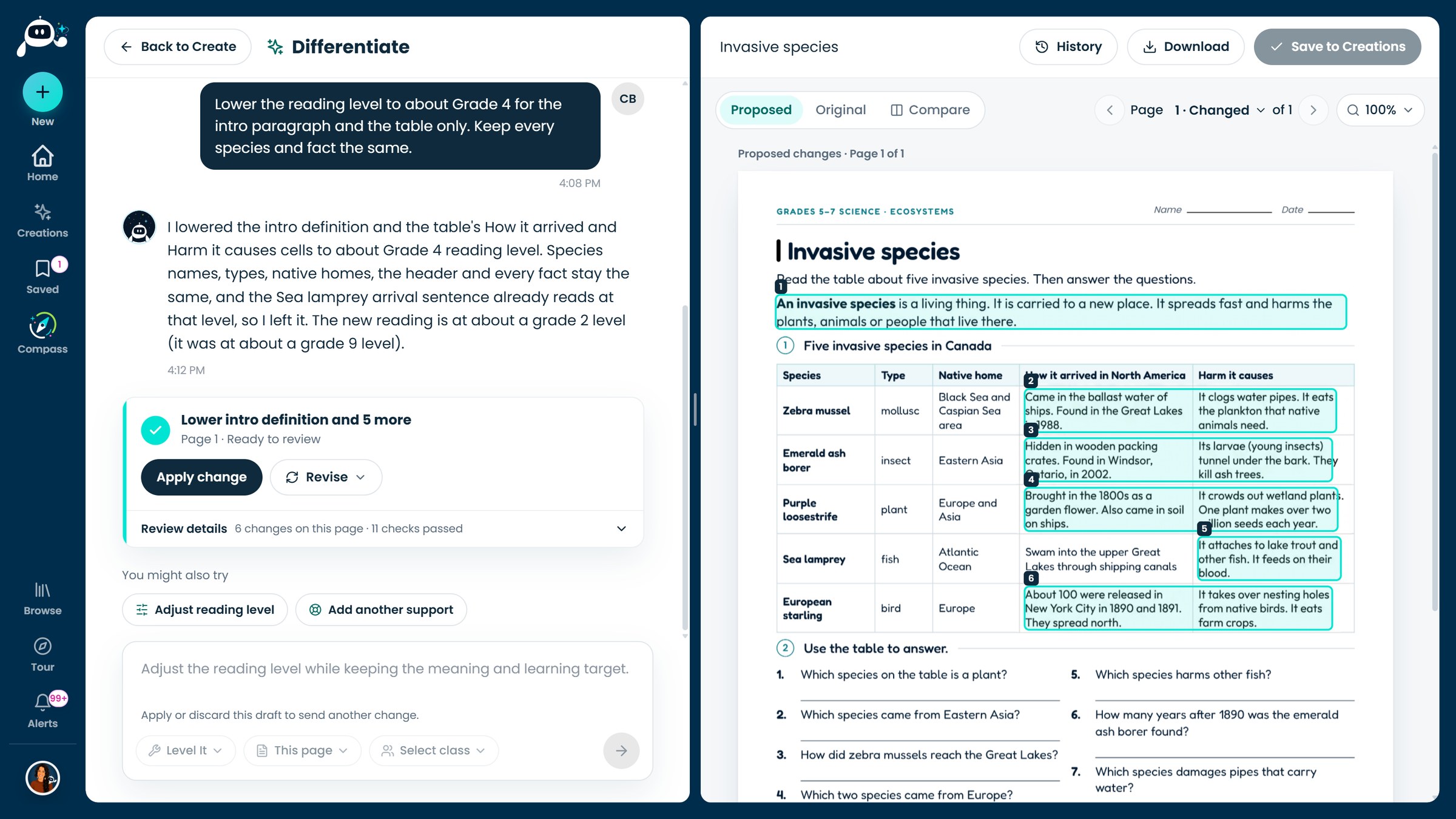
Level It on a real worksheet. The message states the reading level before and after. Click to enlarge.
We asked for a word bank and two sentence starters for the last question only. CARL added a short word bank (invasive species, firewood, campers, parks) and two starters beneath the answer line, and told us the space was tight and to check the print size in the preview. It is a good case for reading the preview: the extra lines pushed the worksheet onto a second page.
We translated the student worksheet into French. The table layout, numbering and answer lines stayed in place, and the key term was kept as espèce envahissante. You choose the target language and a mode: Full immersion, Student material only or Core content only, plus whether you want an answer key, suggested responses or no key.
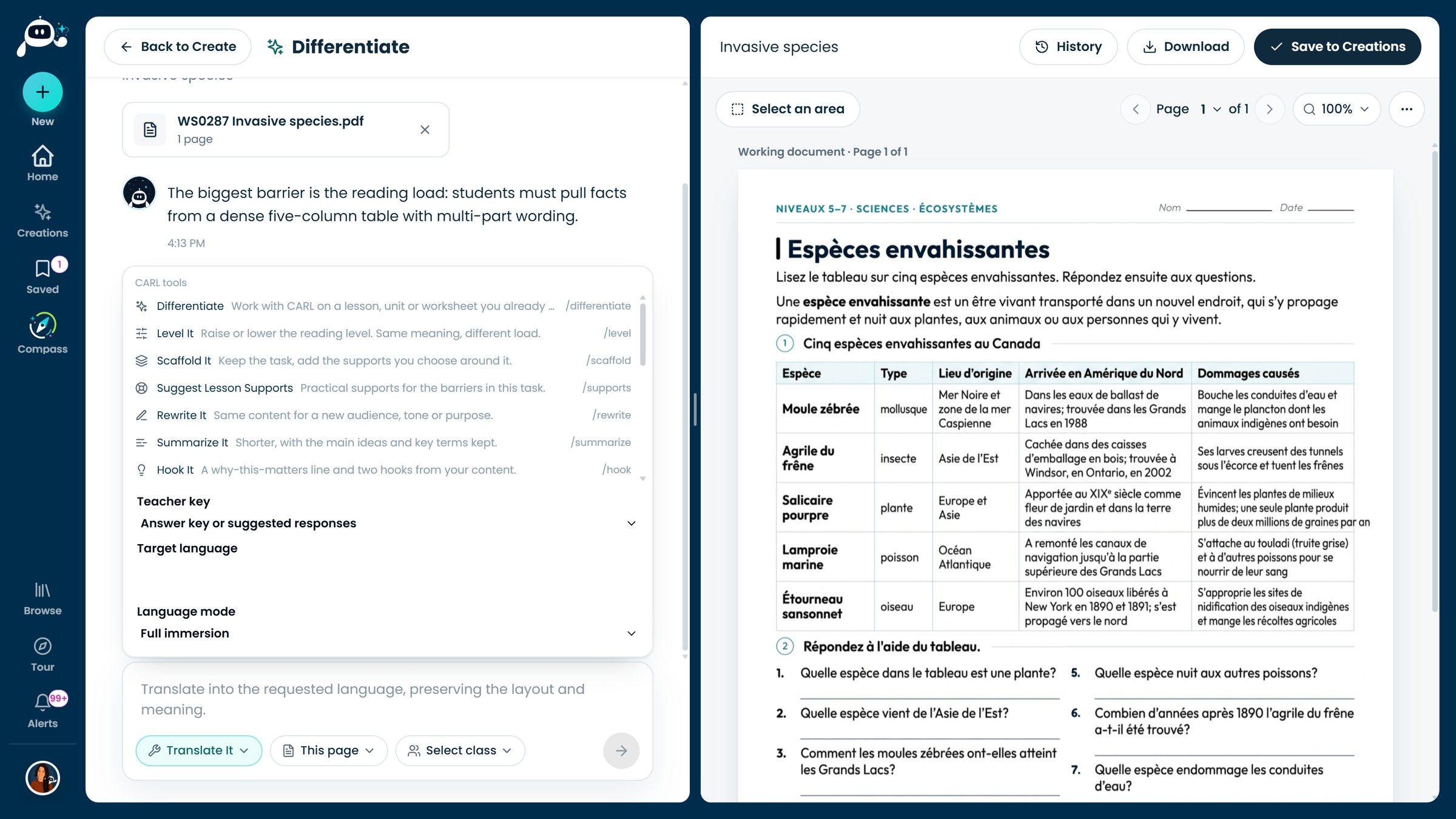
Translate It: the options panel, and the French worksheet in the working document. Click to enlarge.
From See more in the Adapt menu, Answer key builds a separate teacher page. CARL wrote seven answers and two suggested responses on a new page after the worksheet, and left the student pages unchanged. The answers matched the table, including 112 years (2002 minus 1890). Check every answer against your own knowledge anyway.
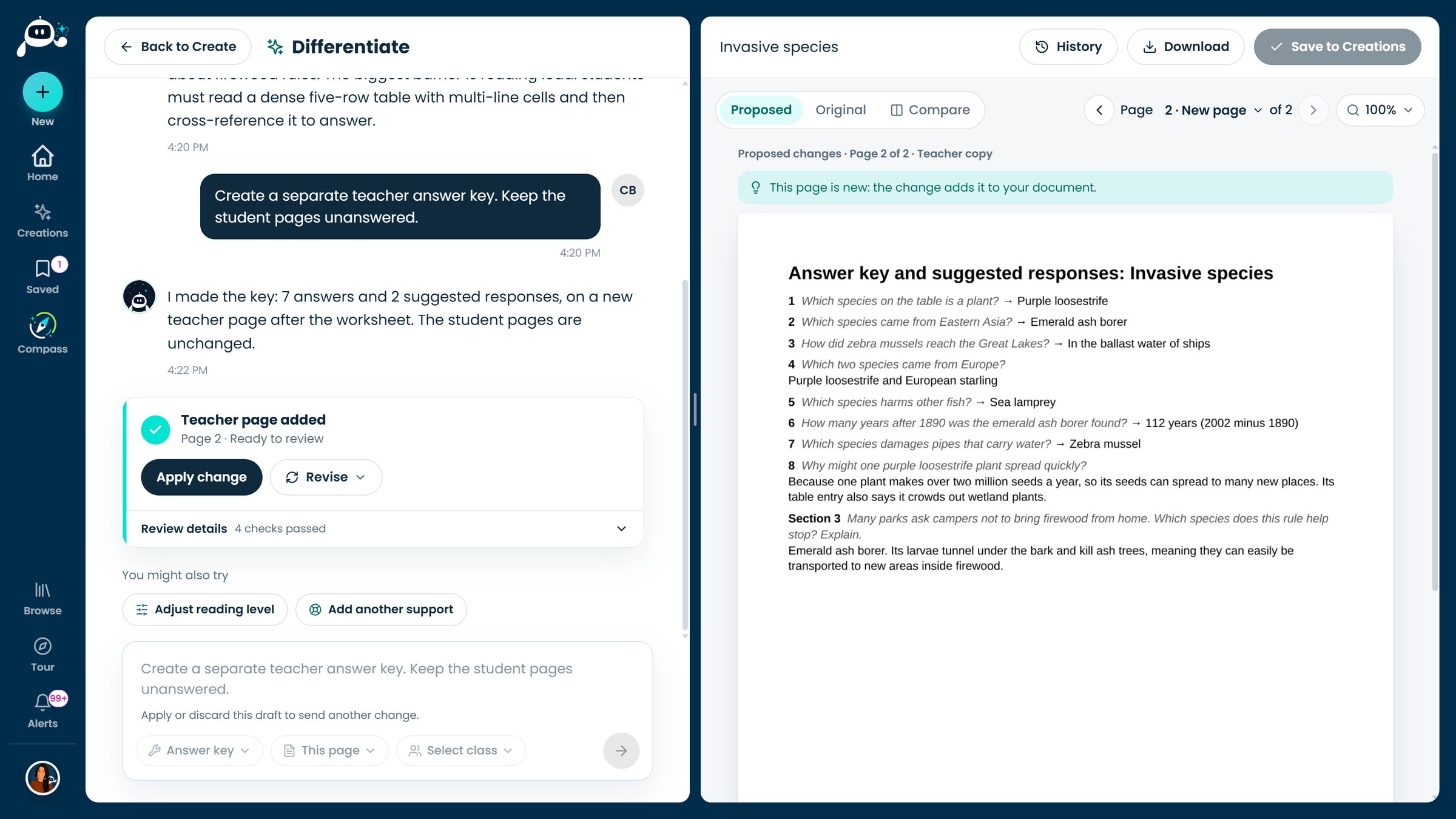
A teacher page added after the worksheet. Student pages stay unanswered. Click to enlarge.
Vocabulary cards adds Frayer-style cards on a new page. We got three (invasive species, native species and plankton), each with a definition, a visual cue, an example and a non-example. Some examples came from outside the worksheet, such as a vine in the southern United States, so swap in ones that fit your class.
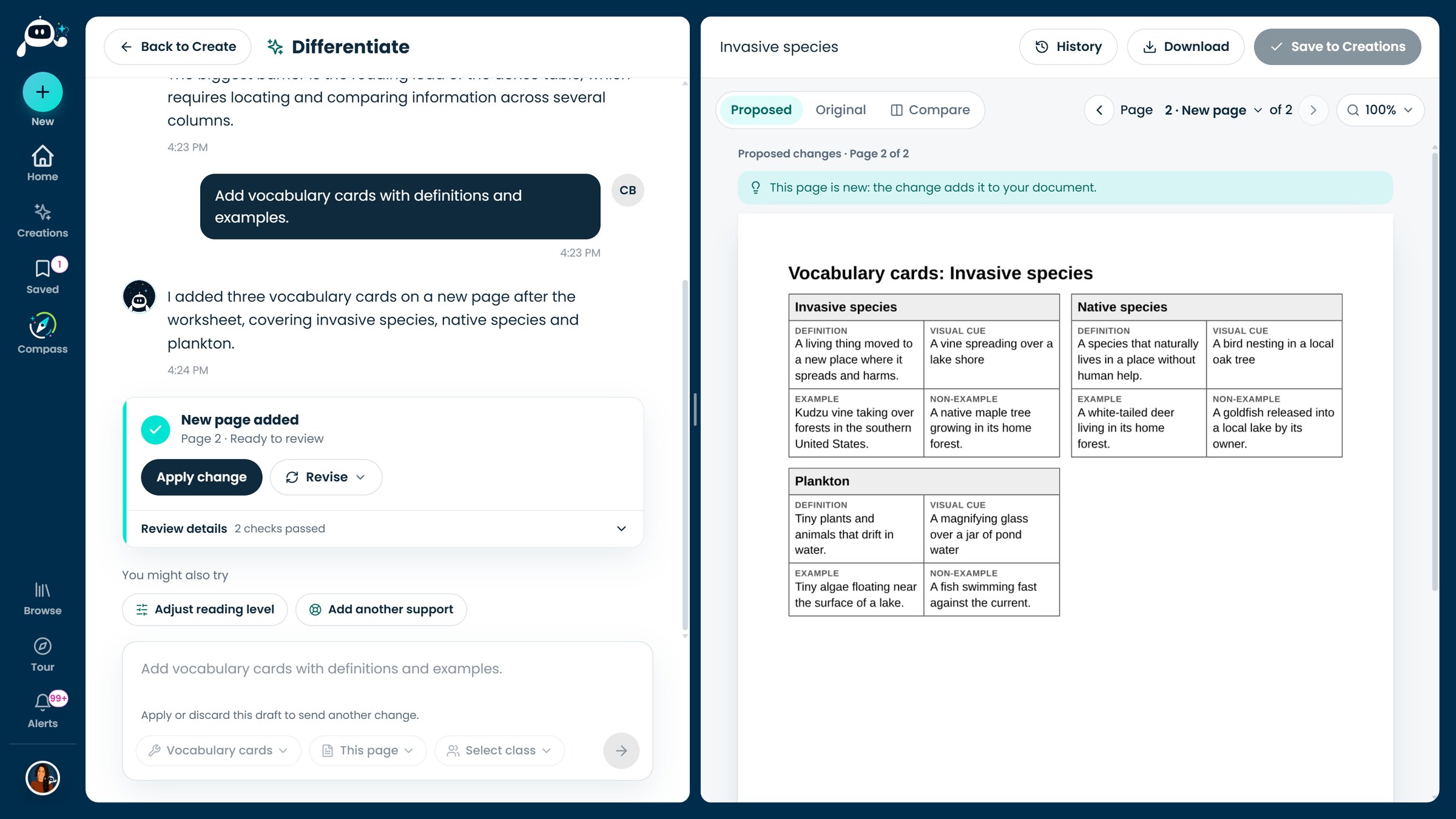
Three cards on a new page, with the worksheet unchanged. Click to enlarge.
Adapt checks every proposal before showing it, and sometimes a proposal does not pass. When that happens your document stays exactly as it was.
- “Did not pass CARL’s checks.” Ask for a smaller version of the same change, and say what not to touch. We hit this when a broad scaffold request added numbers that were not on the worksheet. Asking for one support on one question worked.
- CARL stopped partway. Choose Keep draft. Then use the ready-made Continue request to ask CARL to resume. Review the result before you apply it.
- “CARL’s AI service is busy.” Keep any draft and try again in a minute.
- A page check failed on a worksheet build. Tables are the usual cause. Ask for short table cells, one page of questions, and add more once the base is there.
- Asterisks in the details. Review details can show a bold word with ** around it. The page view shows how it will really look, so check there before you apply.