
Compass Learn & Support
Find practical help for setting up Compass, adding plans or logs, checking coverage, using Plus features, and generating reports.
Add classes or subjects
Add or manage the classes, subjects, grades, and curriculum sources you want to track.
Open guide →Add what you planned or taught
Use Add Plan for planning records, or Quick Log when you just need to record what happened.
Open guide →Check coverage and reports
See what is To Do, Planned, or Taught, then generate a clean record when needed.
Open guide →Getting Started
6 guidesWhat is Compass?See what you have taught, what is scheduled and what still needs attention, in one place.
Compass helps teachers track curriculum coverage across planned and taught work. It shows what has been taught, what is scheduled, and what still needs attention.
What Compass helps with
Visual reference
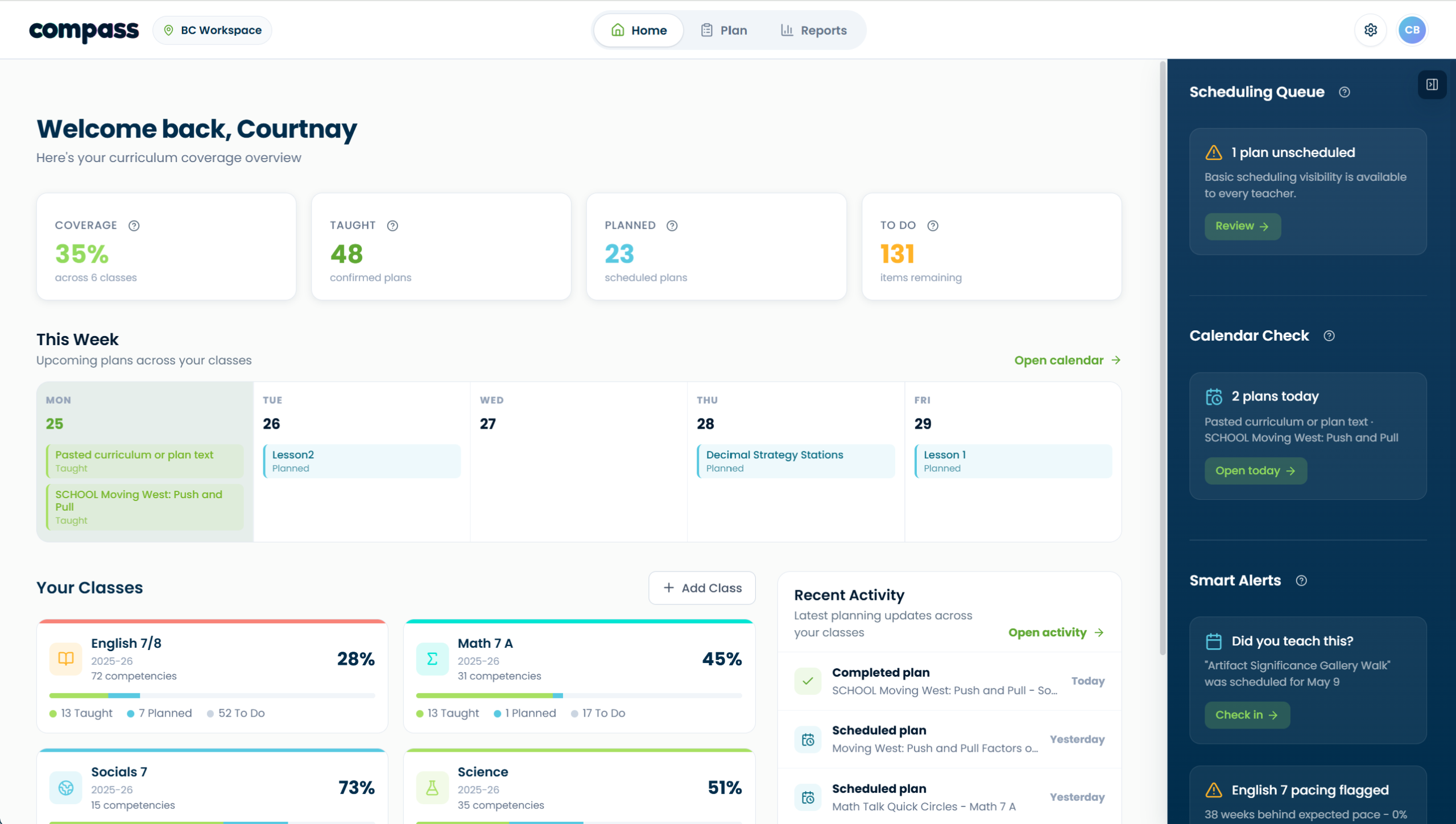
Do I need CARL to use Compass?No. Compass works on its own, and it connects to CARL if you use both.
No. Compass is part of the CARL family of teacher tools, but you do not need CARL lesson planning to use Compass.
If you use both, they connect. Open a plan record in Compass and choose Copy to CARL to build the full lesson in CARL, or use Book in Compass in CARL to put a finished lesson on your calendar. See how CARL and Compass connect.
What’s the difference between Free and Plus?Free covers timetable planning and core coverage tracking. Plus adds Smart Scan, Plan with Compass and more reports.
Free includes timetable planning and core coverage tracking. Plus adds Smart Scan, Plan with Compass, and extra reports.
How do I add classes or subjects?Add the classes and subjects you teach, and choose the curriculum each one follows.
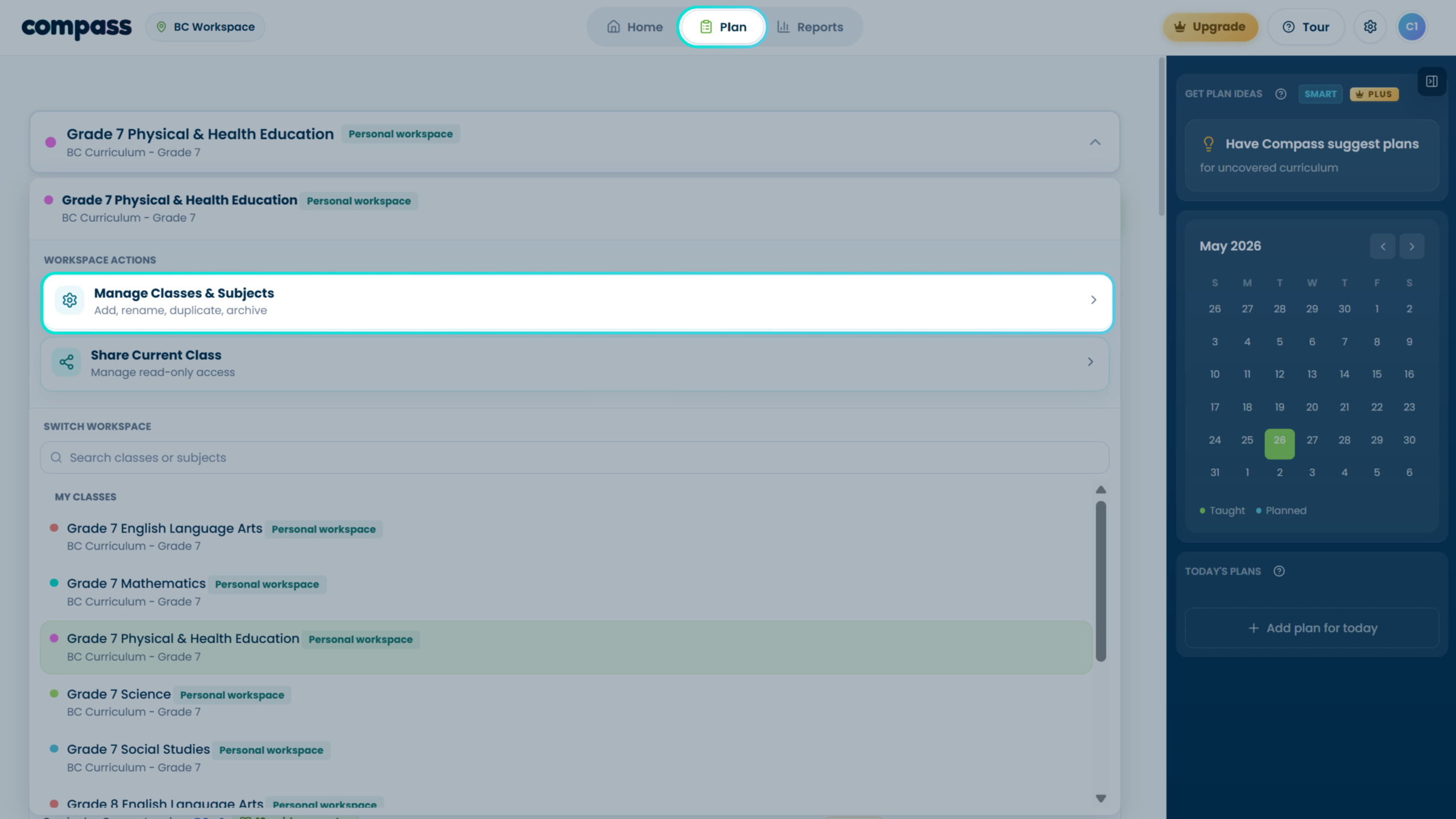
Use Manage Classes & Subjects to add or adjust the classes, subjects, grades, and curriculum sources you want to track.
When to use this
Use this guide when you are setting up Compass for the first time, adding another class or subject, or adjusting a class after setup.
Basic steps
- Start with your curriculum context. During first setup, choose your province or curriculum source, then choose your subjects and grades.
- Confirm what levels Compass should track. Levels 3 and 4 are selected by default. Levels 1 and 2 are reference/context levels unless you choose otherwise.
- Create your first workspace. Compass creates the first class or subject workspace from your setup choices.
- Add more later. Open Manage Classes & Subjects from the Plan page subject selector or from Settings.
- Review, rename, duplicate, archive, or add sections. The management screen is where class and subject admin actions belong.
Visual walkthrough
What are tracking levels?Which levels of your curriculum count toward coverage, and which are there for context.
Tracking levels are the layers of the curriculum hierarchy. Levels 3 and 4 can count toward coverage. Levels 1 and 2 are shown as reference/context unless otherwise enabled.
What are guidance notes?Reference notes that explain a curriculum item. They are not counted as coverage.
Guidance notes are reference information connected to a curriculum item. They help teachers understand a standard, but they are not tracked as coverage items.
Guidance notes may include official notes, examples, clarifications, or supporting context. They are helpful for teacher understanding, but they do not count as separate coverage items.
Plan Workspace
5 guidesHow do To Do, Planned, and Taught work?What To Do, Planned and Taught mean, and how an item moves from one to the next.
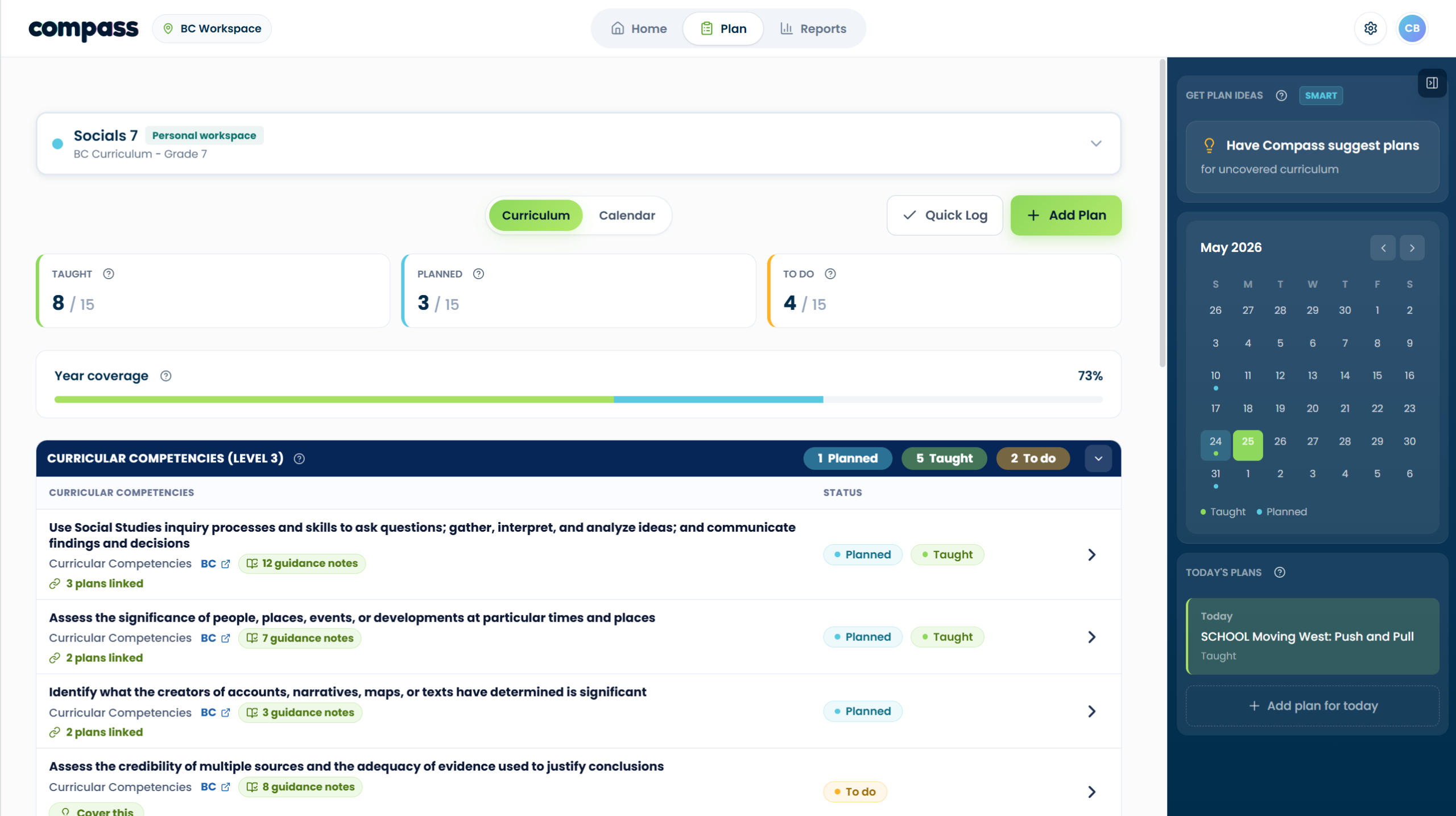
To Do, Planned, and Taught show where each curriculum item sits in your coverage workflow.
Status meanings
Coverage priority
- Taught comes first. If at least one confirmed active plan is marked Taught, the item shows as Taught.
- Planned comes next. If there is no taught plan but there is a dated confirmed plan, the item shows as Planned.
- Everything else stays To Do. Unscheduled or unconfirmed matches do not count until the teacher reviews and confirms them.
Visual reference
How do I add a plan?Add something you are planning, something you have already taught, or an idea to keep for later.
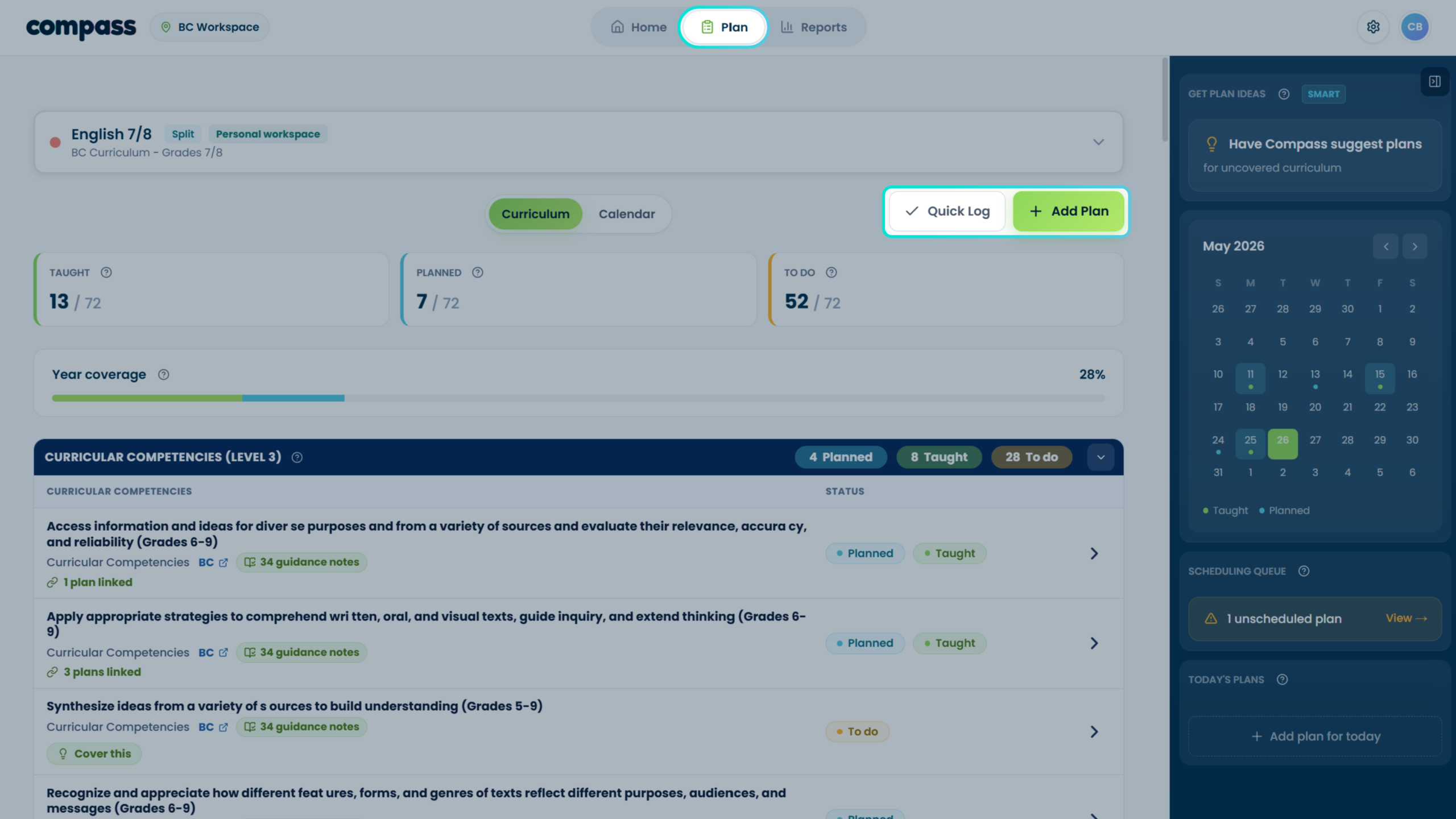
Use Add Plan when you want to add something you are planning, have already taught, or want to save for later.
Choose the right path
Basic steps
- Open Add Plan from the Plan page. Choose the method that matches what you have.
- Add the plan details. Include a title, class or subject, optional notes, and the status you want to use.
- Choose curriculum manually or review Smart Scan suggestions. Nothing counts until the teacher confirms it.
- Save as Planned, Taught, or saved for later. Dated Planned/Taught records update the coverage view.
Visual reference
How do I use Quick Log?The fastest way to add a record of what you taught.
Quick Log is the fastest way to add a teaching record.
When to use Quick Log
Use Quick Log when you do not need to upload a plan or write a detailed record. It is designed for quick coverage logging.
Basic steps
- Open Quick Log from the Plan page. This opens the fast entry workflow.
- Select what you covered. Choose the curriculum items connected to the lesson or activity.
- Choose when it happened. Use Today, Yesterday, or pick a date.
- Add an optional title or note. Keep it short. The goal is a useful teaching record, not a full lesson plan.
- Save the log. The selected items can update the coverage view once confirmed.
Visual walkthrough
What is Cover This?Log a plan against a curriculum item, or get help planning a sequence on your timetable.
Use Cover This to log a plan for a curriculum item. For help planning a sequence on your timetable, use Plan with Compass and review the proposal before adding it.
How do I find plans I’ve already added?Find the plans, logs and archived items you have already added.
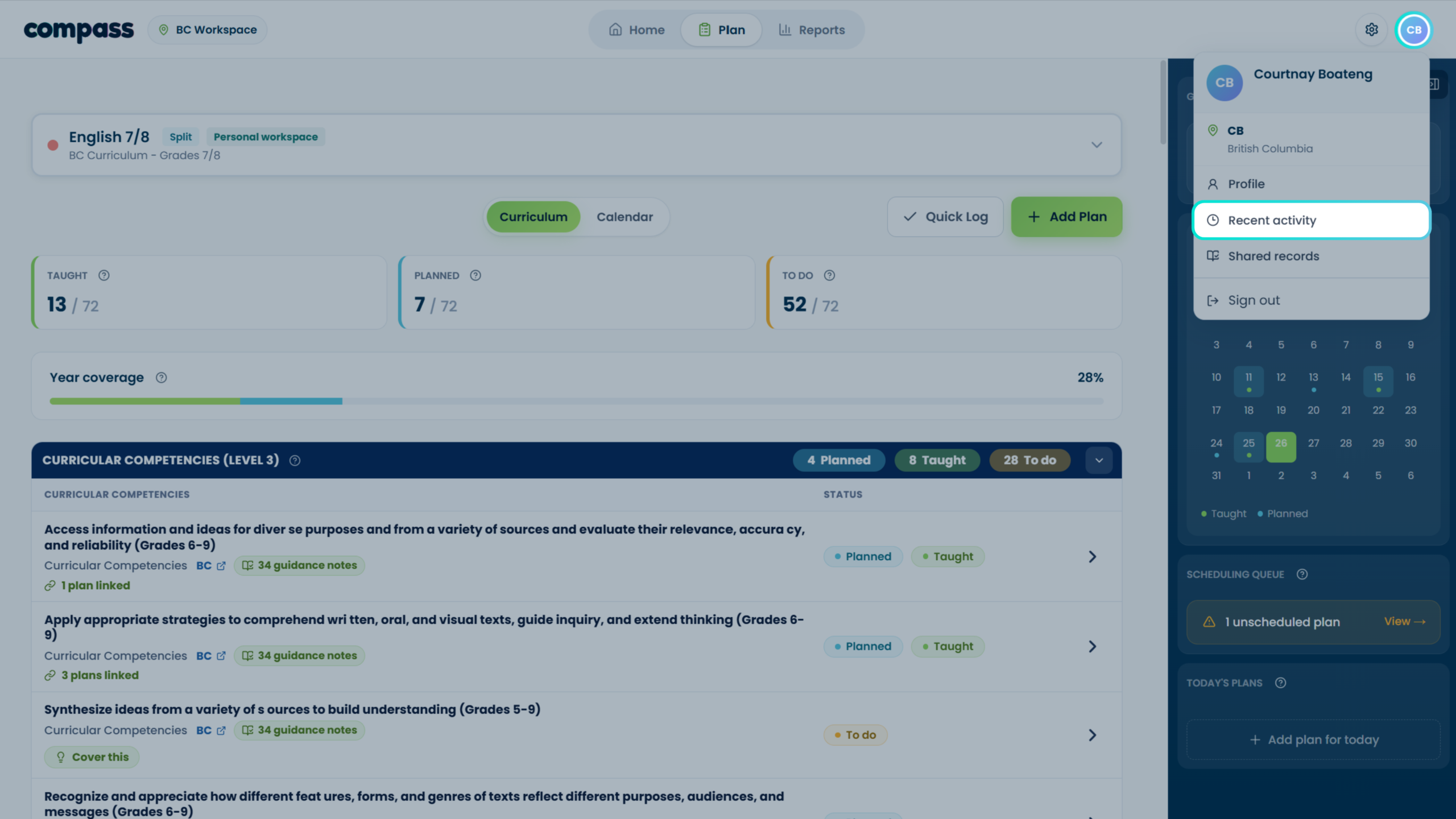
Use Recent Activity to review plans, logs, archived items, and coverage updates you have added to Compass.
Where to find it
- Open Recent Activity from the Home page or profile dropdown. This is the main place to review previous records.
- Look for the plan or log you need. Records may include manual entries, Quick Logs, uploaded scans, and saved-for-later items.
- Review the status and curriculum links. Check whether the record is Planned, Taught, Unscheduled, Archived, or Needs Review.
- Take action if needed. Open a record to see its details and the actions available, such as editing, scheduling or archiving.
Visual reference
Plus Features
3 guidesHow does Smart Scan work?A Plus feature that suggests curriculum matches from a plan you upload or paste.
Smart Scan is a Plus feature that suggests curriculum matches from an uploaded plan or pasted text.
Basic steps
- Choose Upload Plan or Paste Text from Add Plan. Smart Scan is available through both paths.
- Compass scans the content. It compares the plan or pasted text against the curriculum items in the selected class or subject.
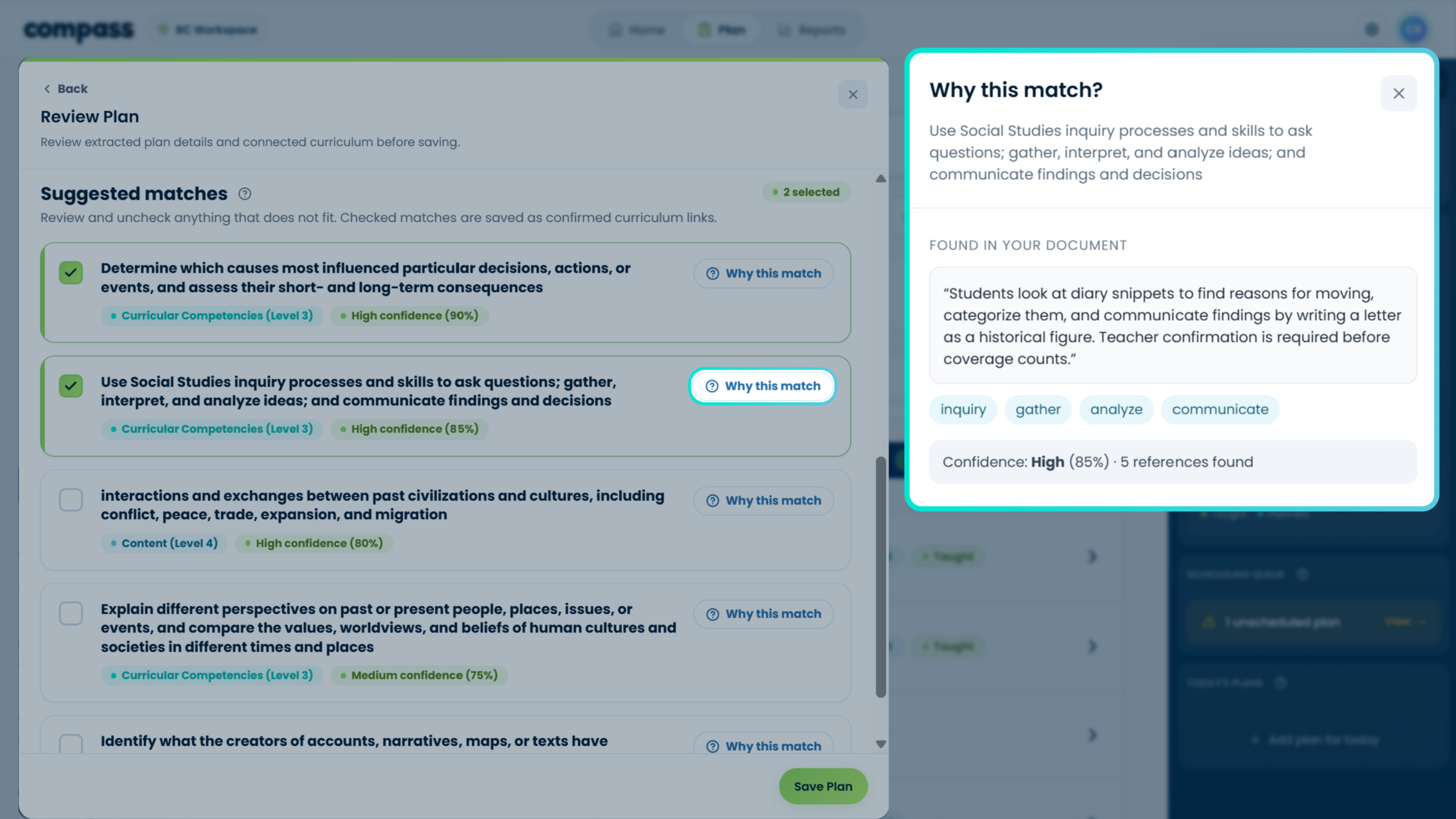
- Review the suggested matches. Teachers can check, uncheck, adjust, or add curriculum items manually.
- Use “Why this match?” when needed. This helps teachers understand why Compass suggested a particular curriculum connection.
- Confirm what counts. Suggestions do not update coverage until the teacher confirms them.
Visual walkthrough
Why this match?
How do I use Plan with Compass?Draft a sequence on your real timetable, then review it before anything is added.
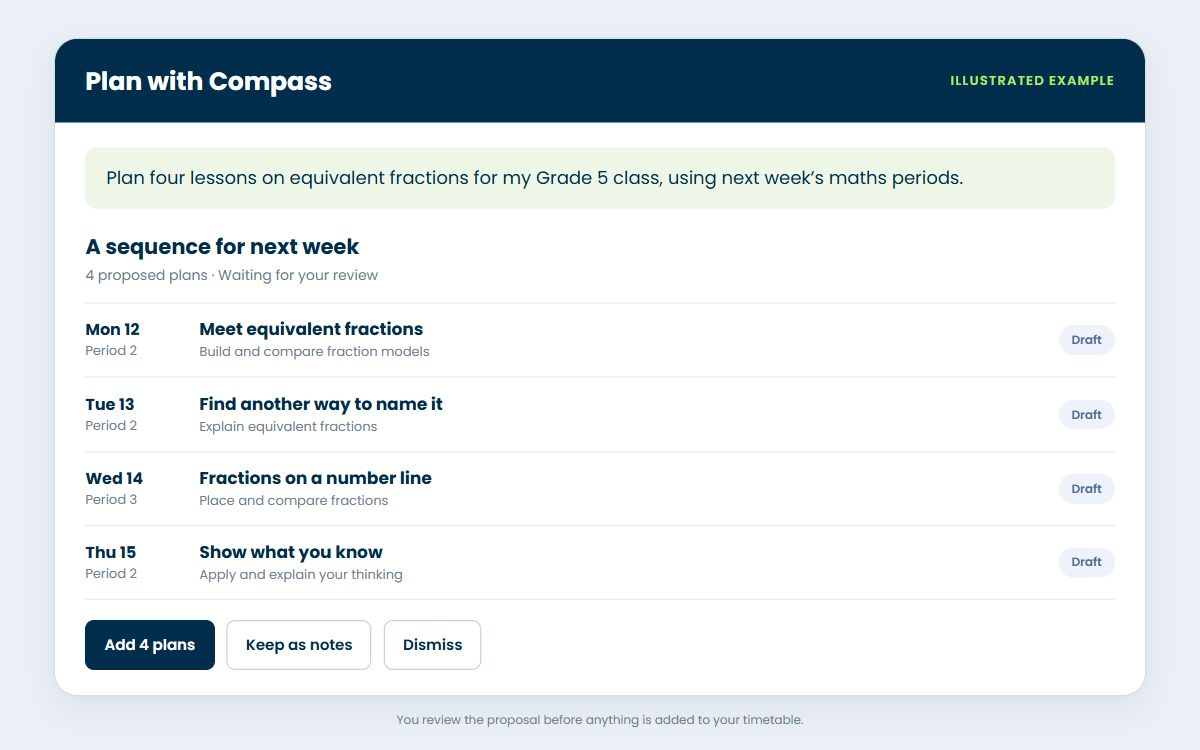
Plan with Compass drafts a sequence on your real timetable. You review the proposal before anything is added.
Plan a sequence
- Start with your timetable. Choose the class, subjects and periods you want to plan.
- Describe what you need. Tell Plan with Compass what you want to cover and any notes that matter for your class.
- Review the proposal. Check the suggested sequence, curriculum links and dates.
- Choose what to keep. Add the plans, keep the proposal as notes, or dismiss it.
Proposal example
What reports are Plus-only?The AI-supported communication and reporting tools that come with Plus.
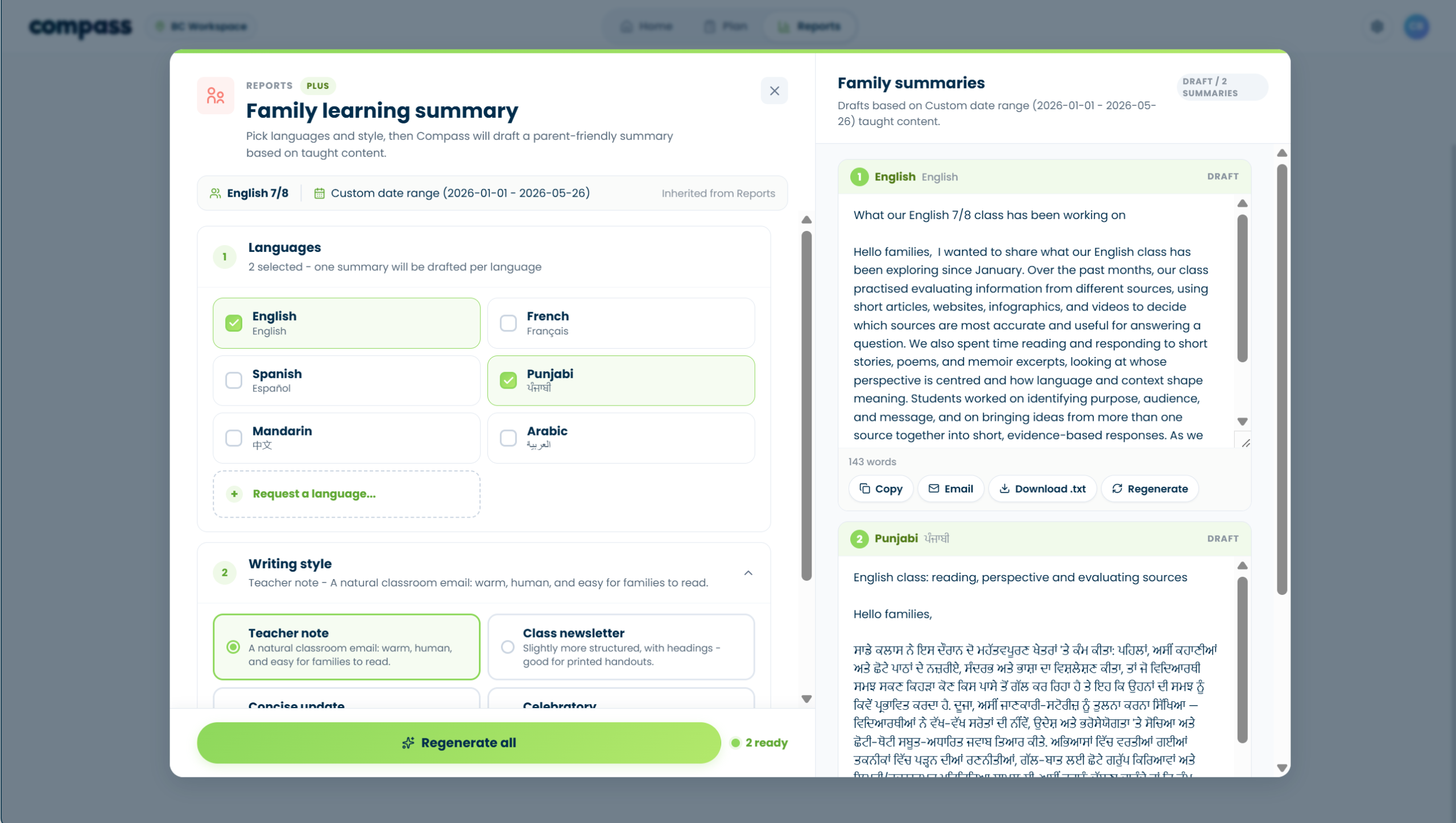
Plus reports add AI-supported communication and reporting tools on top of the basic coverage reports.
Plus report options
Visual reference
Reports & Records
3 guidesHow do I generate reports?Create a clean record of what has been planned, taught or still needs attention.
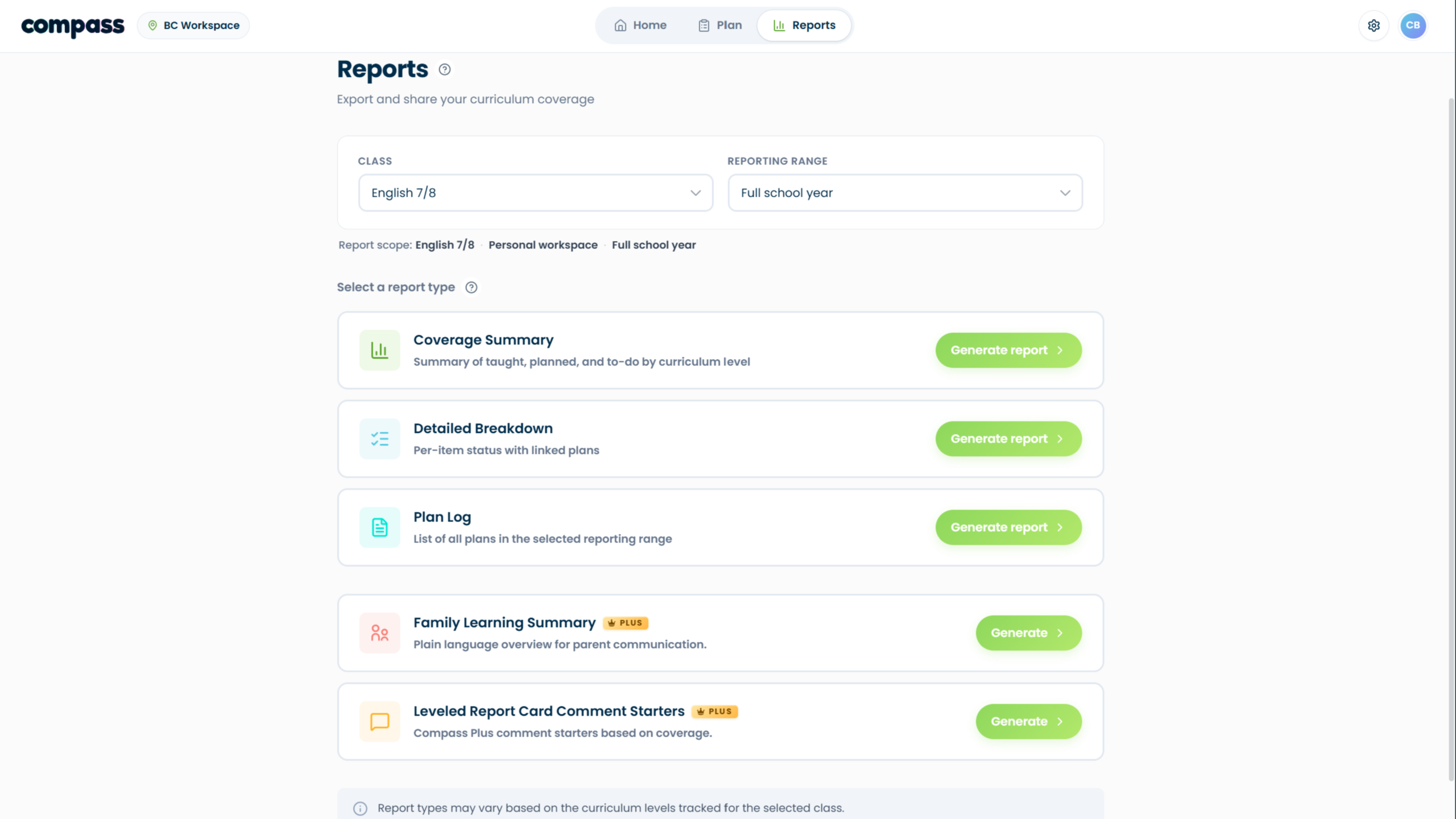
The Reports page helps teachers create clean records of what has been planned, taught, or still needs attention.
Basic reports
Plus reports
Basic steps
- Open Reports. Choose the class and reporting range.
- Select a report type. Choose one of the basic reports or a Plus report.
- Generate and review. Use the report as a record or starting point, then review before sharing.
Visual reference
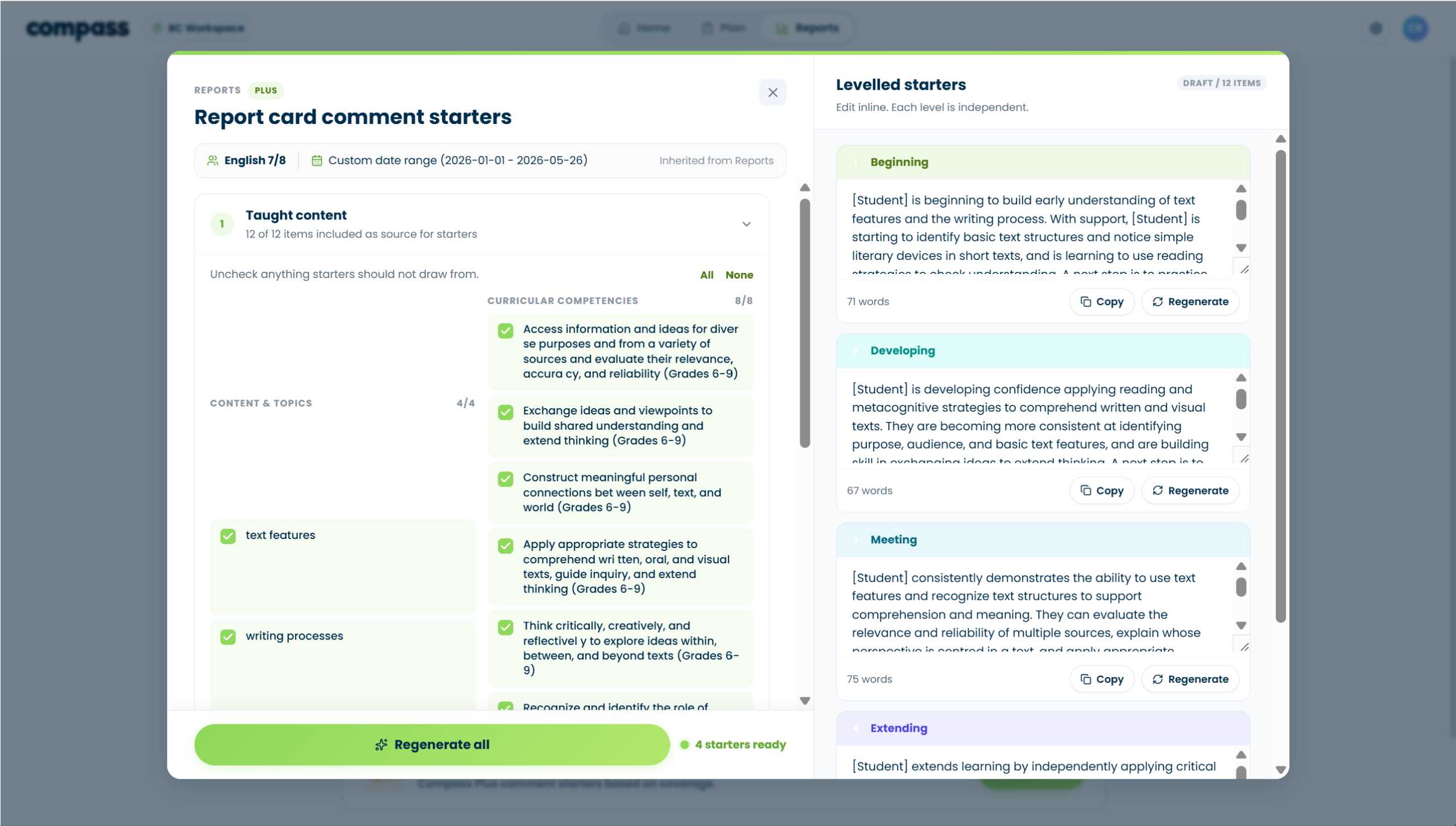
How do Report Card Comment Starters work?A Plus feature that drafts levelled starters from the learning you’ve taught.
Report Card Comment Starters turns the learning you’ve recorded as taught into draft learning statements and next steps, written for each level of your reporting scale. You choose what fits, copy it, and add each student’s evidence in your school’s reporting system.
Basic steps
- Open Reports and choose Create Report Card Comment Starters. Pick the class and the reporting period you’re writing for.
- Choose the learning. Compass lists the areas your taught lessons cover in that period, with how many lessons and when you last taught each one. Pick up to three.
- Choose a reporting scale. Start from a standard scale, like Four levels · 1 is highest, or pick one you’ve saved under Your scales. Its level descriptions are suggested wording, and Customize levels and examples lets you change them.
- Or build your own scale. Create a new scale. Name each level and write what it means. Add an example comment if you want to guide the wording. Save the scale and it’s ready next time. A scale can have 2 to 6 levels.
- Add writing preferences, if you like. Paste a made-up or fully anonymized comment to show your usual wording. Set the next-step emphasis. The learning and your level descriptions still guide the content.
- Create starters, then review each level. Every level gets a Learning statement and a Next step for each area you chose. Switch between the level tabs to compare them. Edit any statement where it sits. Your edits stay when you switch levels. Use Regenerate level for a fresh draft.
- Pick what fits and copy it. Tick statements from any level. They collect in Your selection, so a learning statement from one level can sit with a next step from another. Copy selection copies them as plain text, one statement per line.
- Add your evidence. Paste into your school’s reporting system and add specific evidence for each student. Starters describe the learning, not a student.
Where do I find my records?Your saved plans and logs are in Recent Activity.
Your records are available through Recent Activity.
You can open Recent Activity from the profile dropdown or from the Home page. It shows the plans, logs, archived items, and coverage updates you have added to Compass.
Account & Privacy
2 guidesDoes Compass store my lesson files?No. Compass does not store your original lesson files.
No. Compass does not store original lesson files. It may temporarily read uploaded or pasted content to suggest curriculum matches.
Who can see my data?By default your planning data is only for you. Shared classes are view-only.
By default, your Compass planning data is for you. Class sharing is view-only for the person receiving the share link.
Sharing is not limited to Plus, but the person receiving the link cannot edit your workspace through that share.
Try searching for “Quick Log,” “Smart Scan,” “reports,” or “privacy.”
Still stuck?
Send us a note with what you were trying to do. A screenshot or short description helps us point you to the right resource faster.
