Getting Started Full Guide
CARL in 5(ish) Minutes: The Essential Tour

New to CARL? Start here. This quick tour gives you the big-picture map of the editor, what each tool is for, and where to go when you need more detail.

5(ish) min skim 11 sections Updated for the current editor
1
Editor at a Glance

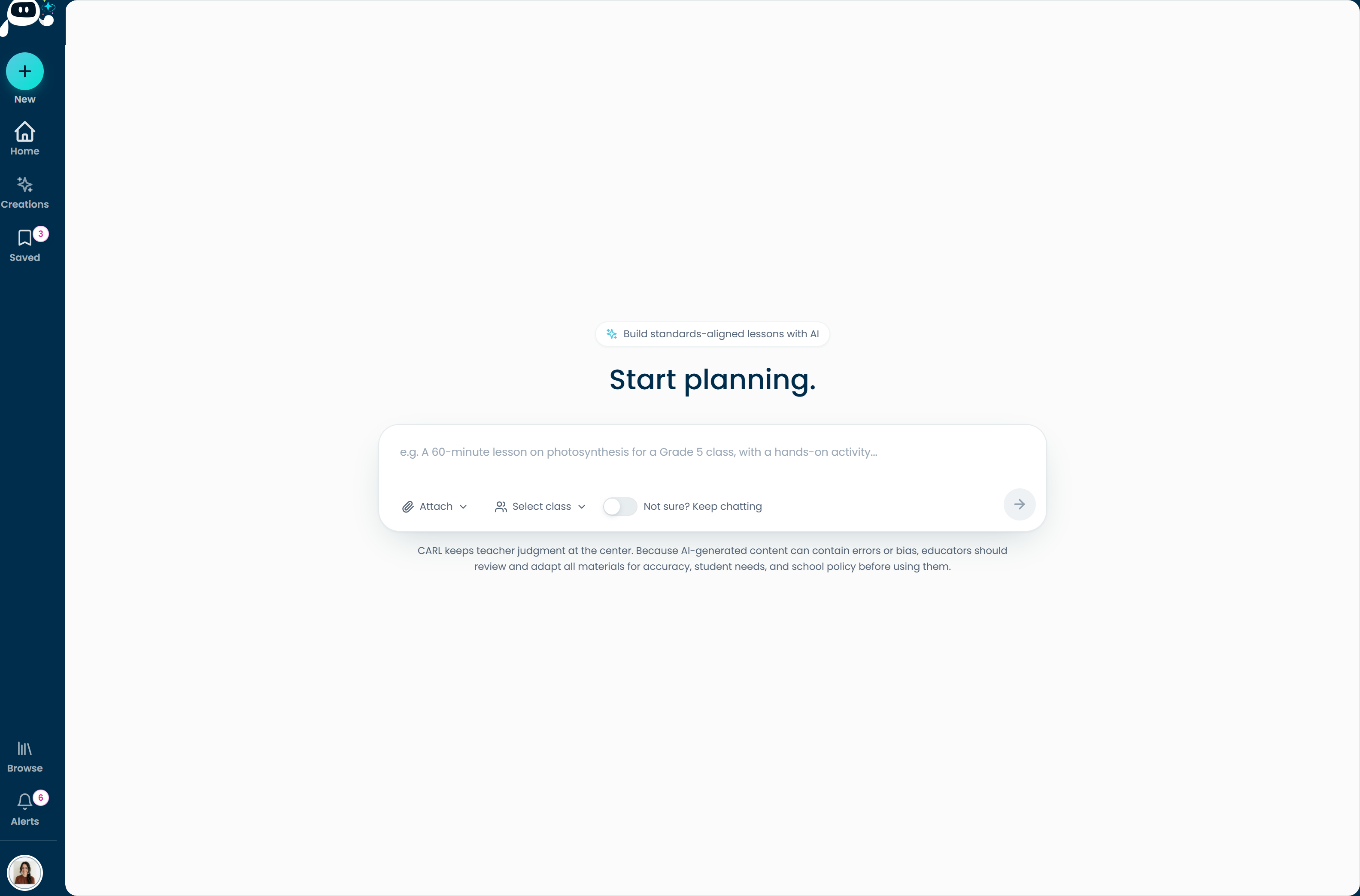
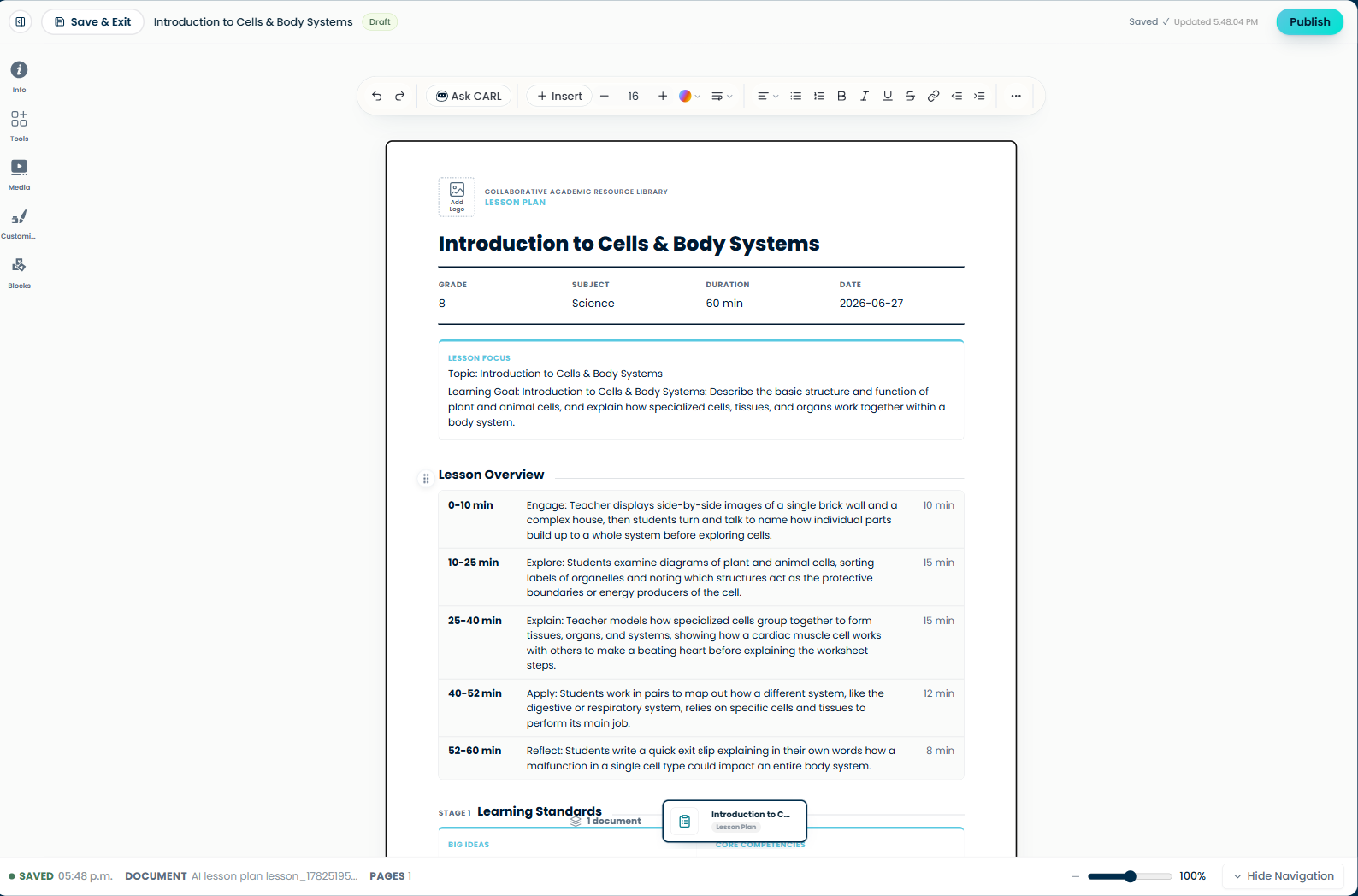
When you open a lesson in CARL, you are working inside the lesson editor. Think of it as your planning workspace: the place where you review the generated lesson, make edits, add activities, customize the look, and prepare the lesson for publishing or sharing.

Annotated CARL editor overview showing Top Bar, Editor Sidebar, Main Editing Area, Page Navigation, and Status & View Controls.
Click to enlarge

The CARL editor layout showing the main areas teachers use while planning.

AreaWhat it does
Top BarSave & Exit, lesson title/status, Publish, and CARL-Assist.
Editor SidebarOpens Lesson Info, Components & Resources, Media, Customize, and Blocks.
Main Editing AreaThe central lesson workspace where you review, adjust, and build your plan.
Page NavigationLets you move between pages or added lesson materials.
Status & View ControlsShows saved status, document/page info, zoom, and view controls.
Good to knowCARL is designed to give you structure first, then flexibility. The lesson template is intentionally organized so your plan stays readable and clean, especially when you publish or download it.
2
Curriculum & Saved Class Profiles

Before you create your first lesson, it is worth setting up your curriculum and class profile. This gives CARL better context before it starts generating.

Your curriculum settings live under Profile Settings → Curriculum. This is where you can choose your default curriculum framework and manage Saved Class Profiles.

Click to enlarge

Set curriculum context and choose a teaching profile before planning.

Curriculum Defaults

Use Curriculum Defaults to choose the curriculum framework CARL should use when generating new lessons and units.

Saved Class Profiles

Saved Class Profiles let you save reusable classroom context, such as grade, subject, class size, lesson length, technology access, and learner needs.

When you start planning, use Choose saved class profile before generating your lesson. This helps CARL understand the class you are planning for without asking you to re-enter the same details each time.

Good to knowSaved Class Profiles are especially useful if you teach the same class or subject often. They help CARL generate lessons that feel more connected to your actual classroom.
3
Components, Teaching Resources & Blocks

CARL has three different tools that can sound similar at first: Components, Teaching Resources, and Blocks. They each do something different.

Annotated editor sidebar showing Components, Teaching Resources, and Blocks.
Click to enlarge

Components, Teaching Resources, and Blocks each serve a different purpose in the editor.

ToolWhat it isBest for
ComponentsStudent-facing activities, assignments, assessments, and handouts.Adding an exit ticket, quiz, worksheet, reflection, handout, or activity students will use.
Teaching ResourcesMostly teacher-facing supports.Adding lesson/unit enhancements, ELL supports, and other instructional supports.
BlocksSmaller extra pieces added inside an existing page or template.Adding a Venn diagram, table, chart, organizer, multiple-choice section, or extra content area.
Good to knowThe CARL Blocks system is not intended to create full worksheets from scratch. Blocks are meant to supplement existing templates. If there is a template you wish CARL had, you can request it through the support page.
4
Add Components

Components are student-facing materials you can add to a lesson, such as assignments, activities, assessments, handouts, quizzes, and reflections.

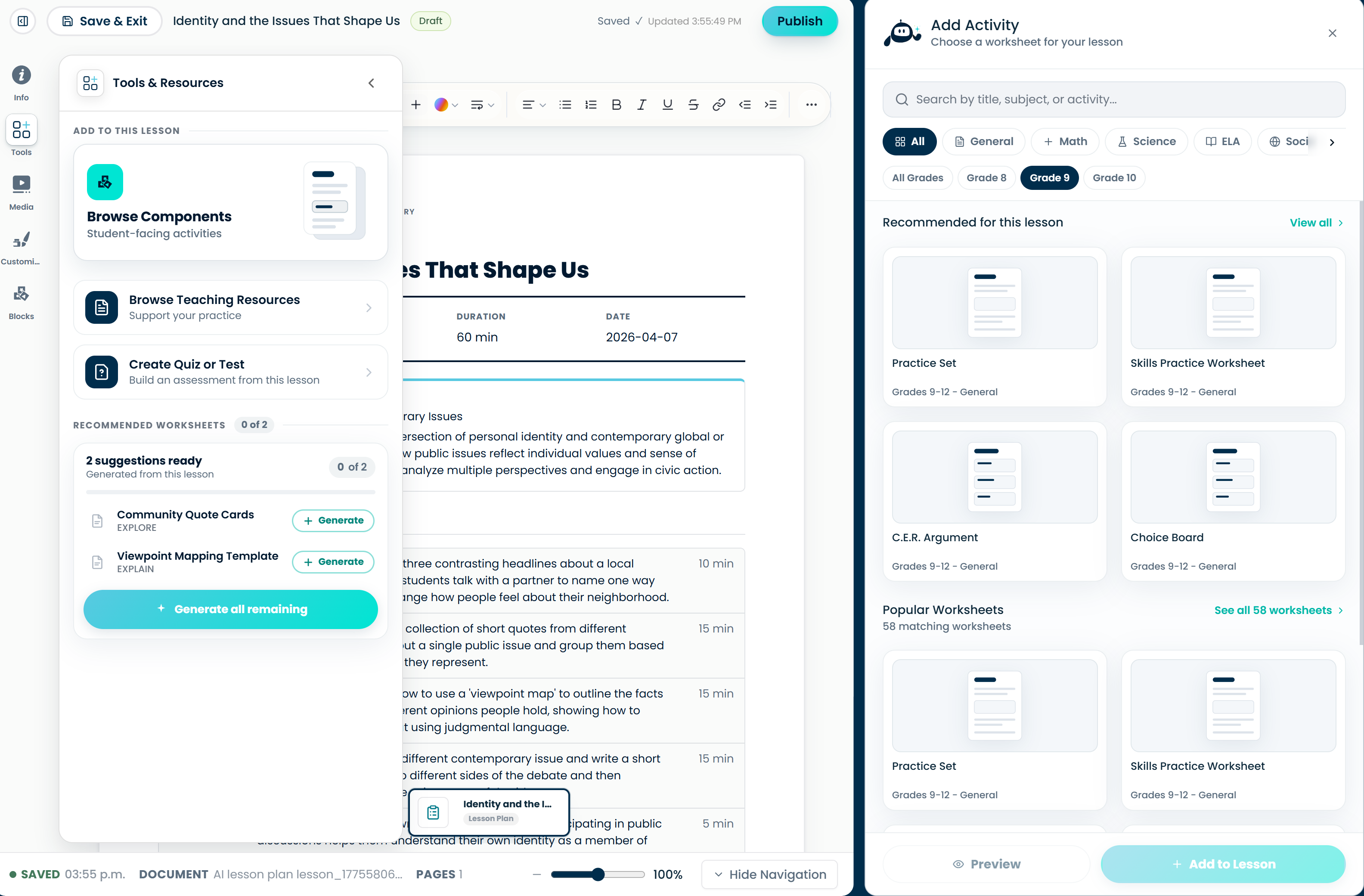
To add one, open Components & Resources in the left sidebar, then choose Browse Components. From there, you can find a component, preview the template, and add it to your lesson.

Annotated Components and Resources panel showing Browse Components and Browse Teaching Resources.
Click to enlarge

Use Components & Resources to browse student-facing components and teaching supports.

Edit firstFor best results, review and edit your core plan before adding AI-generated components. CARL uses your lesson content to generate component content, so a clearer plan usually means a better component.
Use Template vs. AI Generation
OptionWhat it means
Use TemplateAdds the blank structure. You fill in the content yourself.
AI GenerationCARL looks at your lesson and generates content for the component.
Good to knowFor best results, add AI-generated components after your lesson plan is mostly finished. Free users get a limited number of AI-generated components and teaching resources each month, but can still use available templates without AI generation and fill in the content themselves.
5
Generate Teaching Resources

Teaching Resources are supports that help you strengthen, adapt, or extend a lesson. They are mostly teacher-facing, though some supports may create student-facing materials too.

To add them, open Components & Resources, choose Browse Teaching Resources, select the supports you want, and click Generate.

Annotated Teaching Resources panel showing lesson enhancements and ELL supports.
Click to enlarge

Teaching Resources help you generate lesson enhancements and ELL supports after the core plan is ready.

Edit firstTeaching Resources work best after your lesson is mostly finished. CARL uses your lesson content to generate these supports, so clearer lesson details lead to more relevant resources.
AreaWhat it helps with
Lesson & Unit EnhancementsAdds targeted teaching supports connected to the lesson or unit.
ELL SupportsCreates multilingual and language-support resources for English language learners.

Lesson & Unit Enhancement modules may include supports such as UDL & Differentiation, Equity & Inclusion, SEL Focus, Student Voice Action, Trauma-Informed Safeguards, and Indigenous Voice Inclusion.

Good to knowTeaching Resources work best after your core lesson is mostly finished. CARL uses your lesson content to generate these supports, so clearer lesson details lead to more relevant resources.
6
Add Blocks Inside Sections

Blocks are smaller content pieces you can add inside a lesson page or template. They are useful when you want to add a table, chart, organizer, text area, form, or layout support.

Blocks need somewhere to go before CARL can insert them. That means you start by adding a section.

Click to enlarge

Add Section, choose a layout, select a slot, then add a block.

StepWhat to do
1Click Add Section on the lesson canvas.
2Choose a layout.
3Click the slot where the block should go.
4Open Blocks in the left sidebar.
5Choose the block you want to add.
Good to knowIf the Blocks panel looks locked, CARL is usually waiting for you to select a slot. Use this order: Add Section → choose layout → select slot → choose block.
Layout blocksLayout blocks need more room than regular blocks, so they require a full-width section. If a Layout block will not fit in a smaller slot, add a full-width section first.
7
Use CARL-Assist

CARL-Assist is your built-in AI support tool in the lesson editor. It helps you review your lesson and ask questions while you work.

Annotated CARL-Assist panel showing Review and Ask Carl options.
Click to enlarge

Use Review for a quality check, or Ask Carl when you have a specific planning question.

ToolUse it when...
ReviewYou want CARL to check your lesson for clarity, alignment, gaps, or improvement ideas.
Chat / Ask CarlYou want to ask a question, brainstorm ideas, or get help thinking through a lesson decision.
Good to knowUse Review when your lesson is mostly drafted and you want a quality check. Use Chat when you have an open-ended question or need quick help while planning. Some CARL-Assist features may be connected to your plan or usage limits.
8
Customize Your Lesson

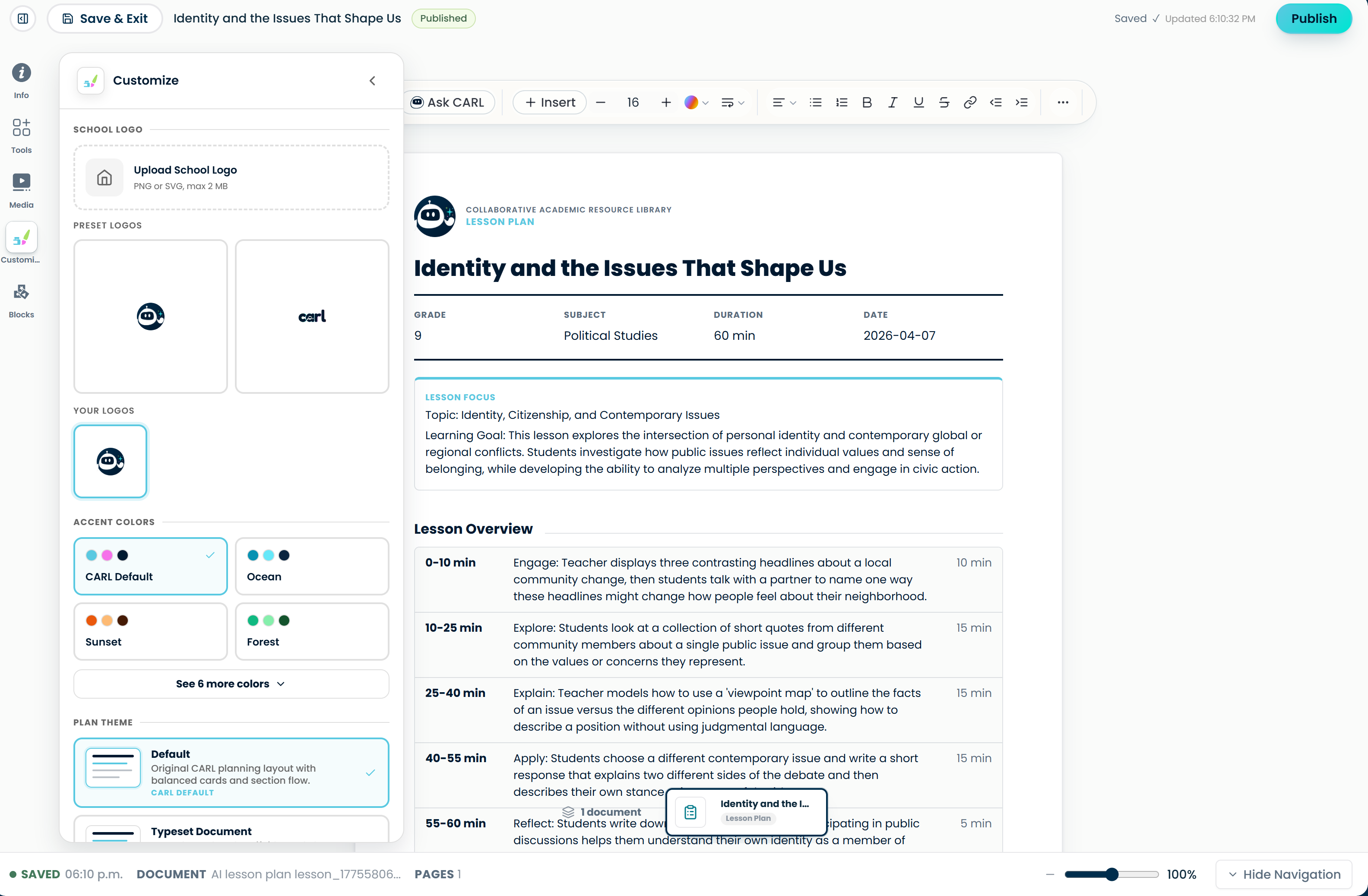
The Customize panel lets you adjust the look and feel of your lesson. You can update fonts, themes, styles, and logos so the lesson feels more polished or better matches your classroom/school context.

Annotated Customize panel overview showing where to change lesson style, fonts, themes, and logos.
Click to enlarge

Use Customize after the main lesson content is mostly finished.

  • Change heading and body fonts.
  • Apply a theme.
  • Adjust the visual style.
  • Upload or apply a school logo.
  • Reuse a preset logo.
Good to knowCARL keeps font choices simple, with four font options including Poppins. Choose readability first, then use themes, styles, and logos to polish the final look.
9
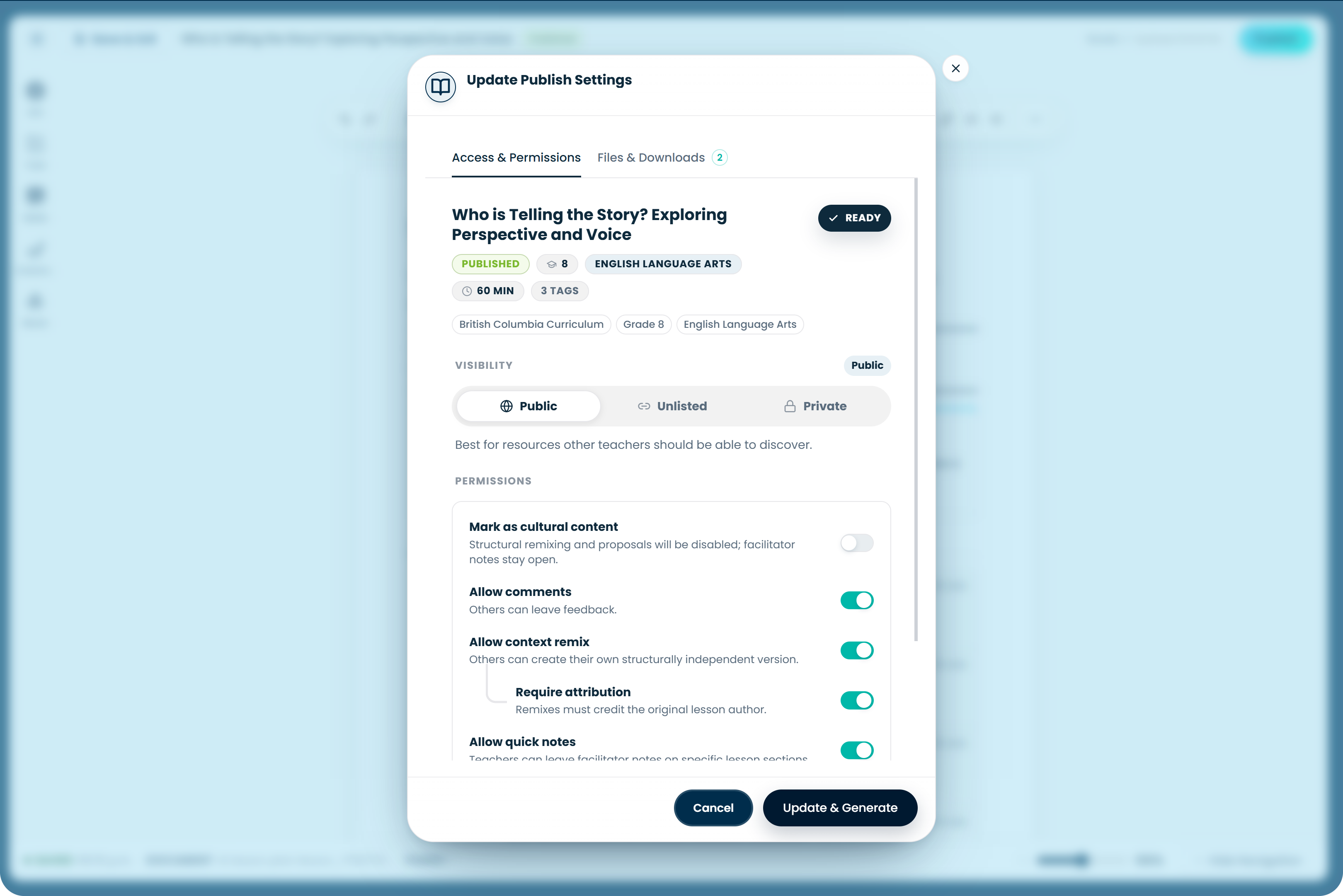
Save, Publish & Download

CARL autosaves while you work. To confirm your lesson is saved, check the bottom-left of the editor for the green dot, SAVED label, and timestamp.

When you are done editing, use Save & Exit in the top-left.

Annotated publish panel overview showing publish and download controls.
Click to enlarge

Use Publish when your lesson is saved and ready to share or download.

Publishing

When you publish, CARL saves your lesson and prepares downloadable files. Most of the time, files are ready by the time publishing finishes.

If your lesson has a lot of components or CARL is busy, downloads may take a little longer. If you see a loading spinner where the download button should be, wait a minute or two and check again.

Good to knowPublishing and file rendering are connected, but they may not finish at the exact same second. If a download still is not ready after a short wait, contact support.
10
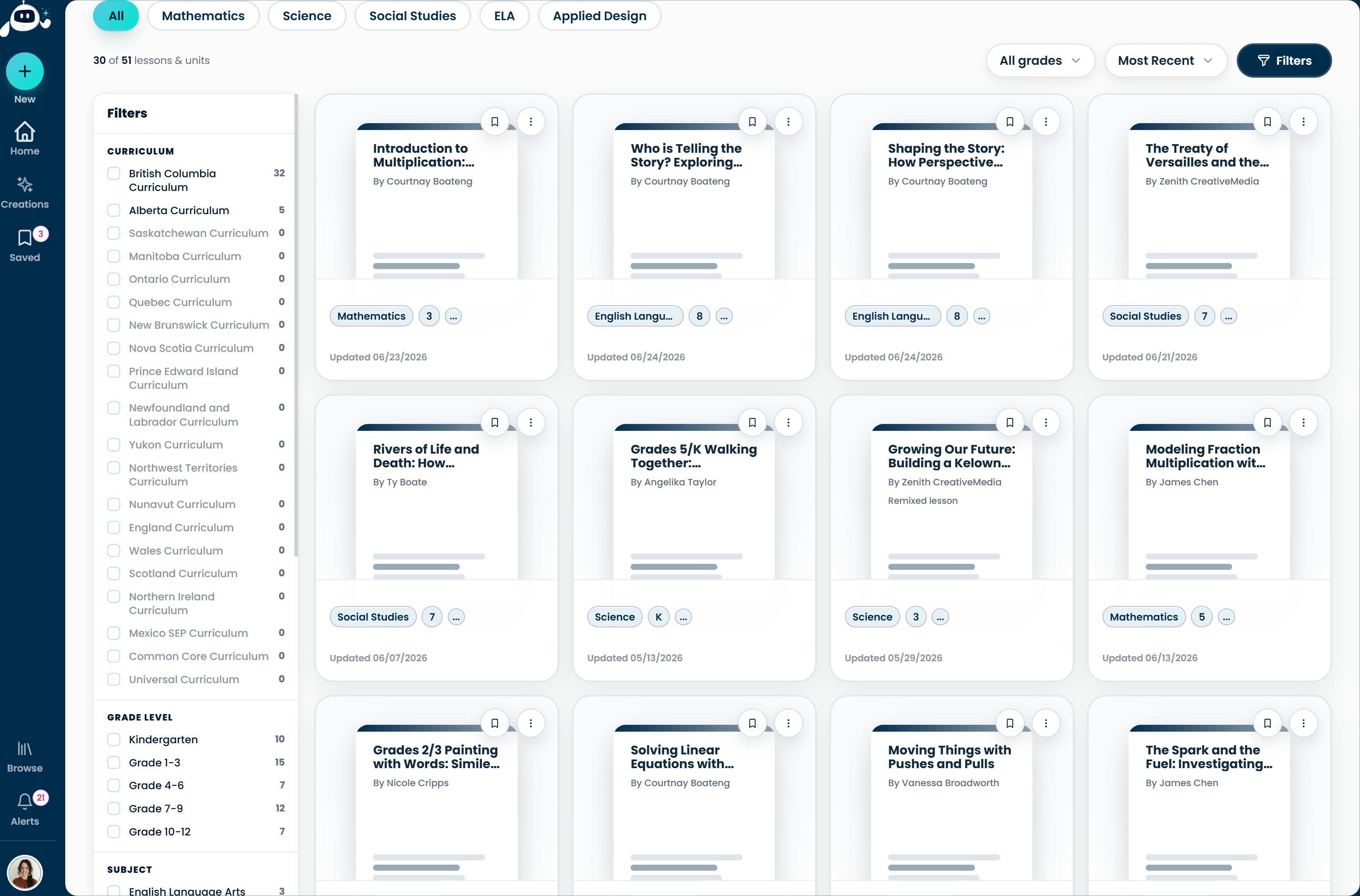
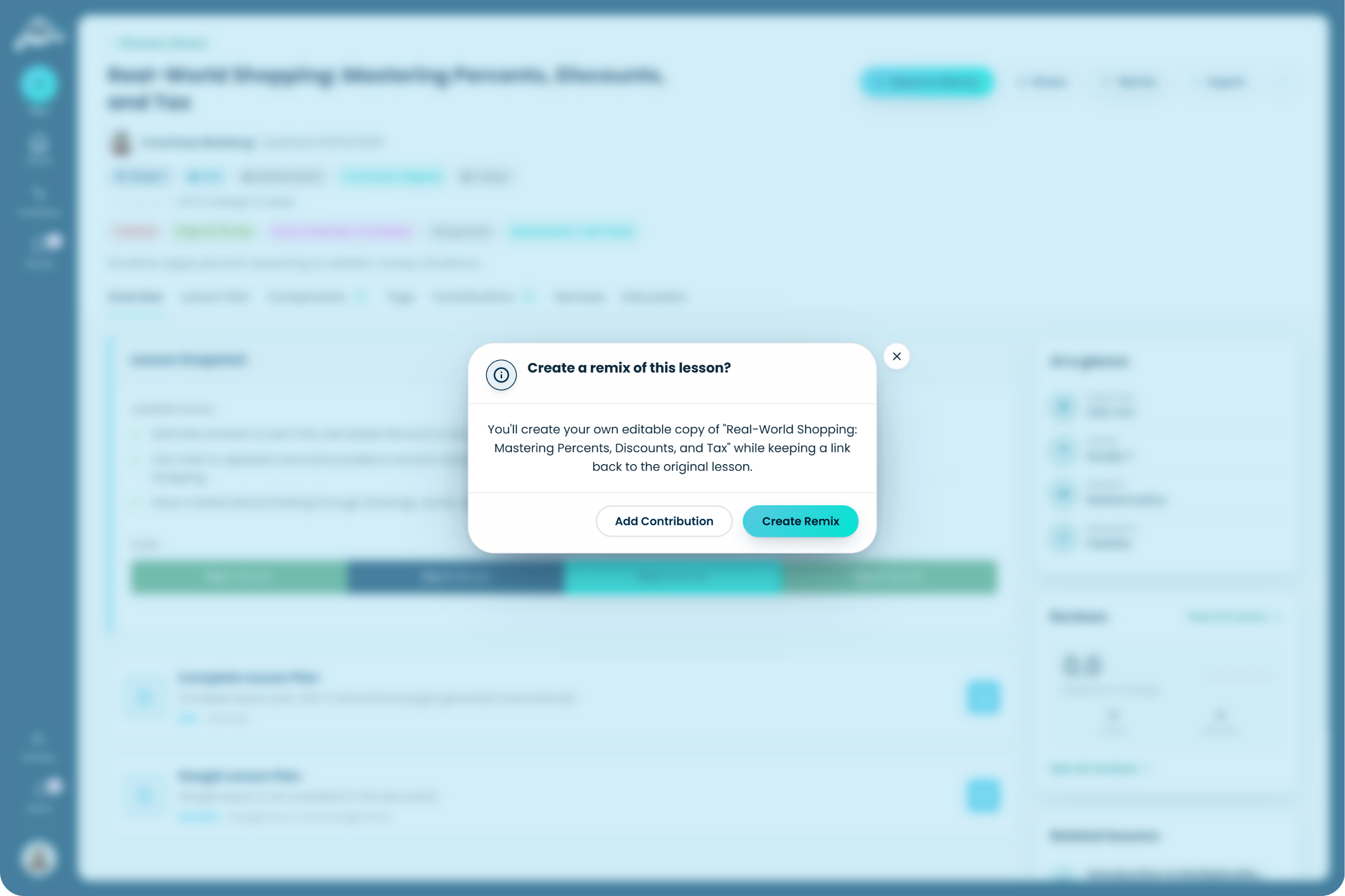
Remix & Contribute

CARL supports collaboration by letting teachers remix and contribute to lessons.

Annotated remix and contribution overview showing remix and add contribution options.
Click to enlarge

Use Create Remix when you want your own editable version, or Add Contribution when you want to add another resource/component.

Contributions

A contribution is an extra component or resource added to a lesson without changing the original lesson plan.

For example, if you like a lesson but want to add an exit ticket as another option, you can add that as a contribution.

Remixes

A remix creates your own editable version of a lesson. Use this when you want to adapt the actual lesson plan for your own classroom.

Protected published lessons

If another teacher saves your published lesson to their library, CARL protects that saved version so it does not change unexpectedly for them. If you want to update the lesson after that, create a remix and publish the updated version.

Good to knowUse Add Contribution when you want to add another resource or component. Use Create Remix when you want to change the actual lesson.
11
Quick Reference
If you want to...Go here
Set your default curriculumProfile Settings → Curriculum → Curriculum Defaults
Save reusable class contextProfile Settings → Curriculum → Saved Class Profiles
Use saved class context while planningStart Planning → Choose Class Profile
Edit the core lesson planLesson editor → Main Editing Area
Add a student-facing activity or handoutComponents & Resources → Browse Components
Add images, upload media, or generate AI visualsMedia → Library, Web, or AI
Add a smaller extra piece inside a pageAdd Section → choose layout → Blocks
Add teaching supportsComponents & Resources → Browse Teaching Resources
Get AI help reviewing or thinking through a lessonCARL-Assist
Change fonts, themes, or logosCustomize
Check whether work is savedBottom-left save status
Publish or update a lessonPublish
Add an extra resource/component to another lessonRemix → Add Contribution
Make your own editable version of a lessonRemix → Create Remix

Start with your curriculum and class profile, generate your core plan, then add components, teaching resources, and blocks once your plan feels solid.