
Publishing & Visibility Permissions
Control who can see your lesson and what other teachers can do with it — from leaving feedback to remixing or proposing changes.
Visibility Options
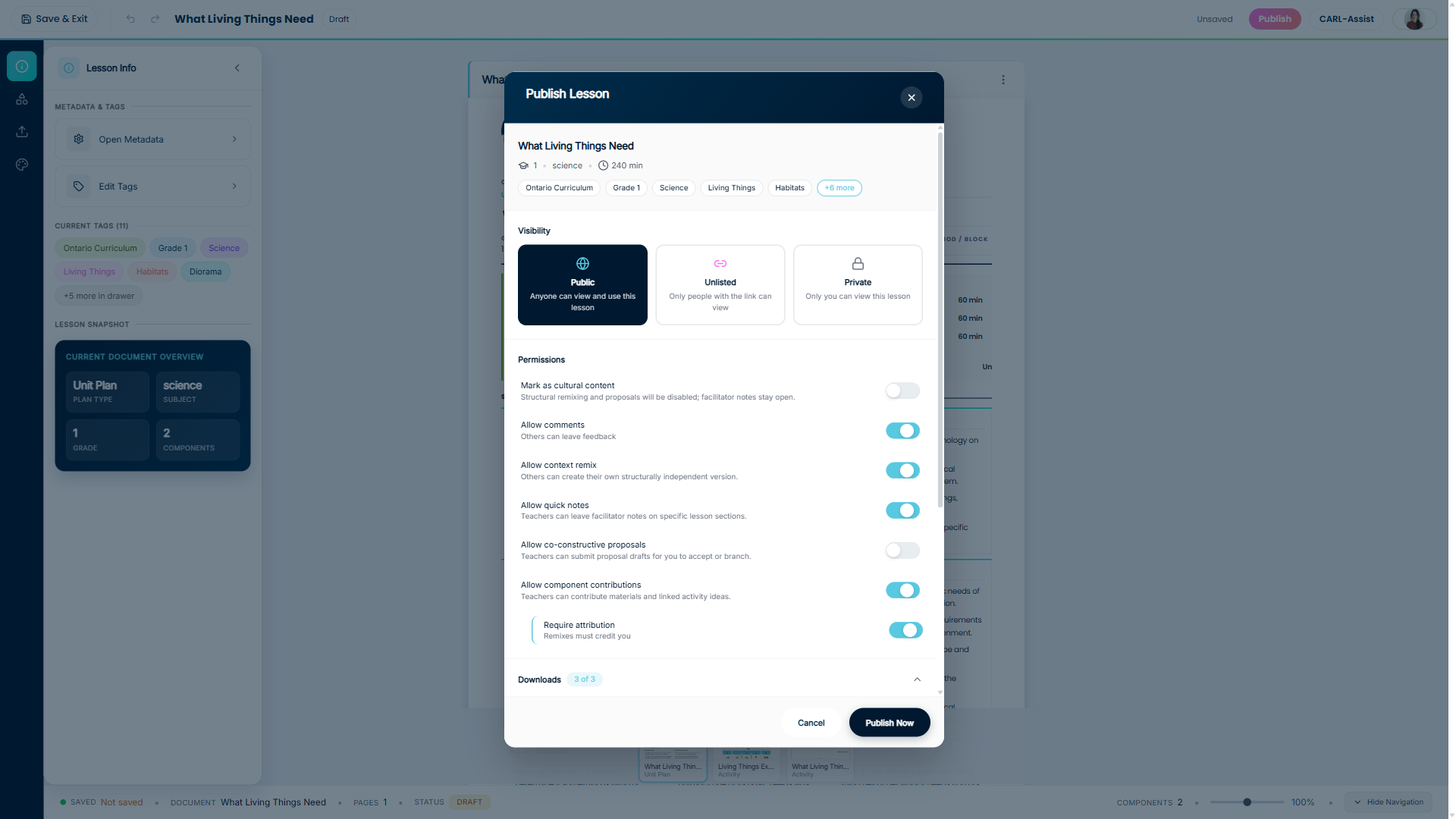
When you click Publish in the top toolbar, the Publish Lesson dialog opens. The first thing to set is your visibility — who can find and view your lesson.
Click to enlarge
| Option | Who Can See It |
|---|---|
| Public | Anyone can find, view, and use your lesson. Permissions apply here. |
| Unlisted | Only people you share the direct link with can view it. |
| Private | Only you can see this lesson. |
Permissions
Once your lesson is Public, these toggles control what other teachers can do with it.
Mark as Cultural Content Default: OFF
Turn this on if your lesson contains Indigenous knowledge, cultural teachings, or land-based content that should be treated with care. When enabled, structural remixing and co-constructive proposals are disabled to protect the content from being modified without cultural guidance. Facilitator quick notes remain available so teachers can still share implementation tips.
Allow Comments Default: ON
Let other teachers leave feedback on your lesson. Comments help you know what's working and what questions people have. They don't modify your original lesson in any way.
Allow Context Remix Default: ON
Let teachers create their own independent copy of your lesson to adapt for their classroom. Their version becomes completely separate from yours — any changes they make won't affect your original.
This is the most common way teachers customize shared lessons for their own context — different grade, subject focus, local examples, and so on.
Allow Quick Notes Default: ON
Let teachers add short facilitator notes to specific sections of your lesson — tips like "I gave students 5 extra minutes here" or "This worked great with manipulatives."
- Notes are visible to other teachers viewing your lesson
- Teachers can vote on whether notes were helpful
- Notes appear in the Community Contributions section
- You can choose to include notes when printing the lesson
Allow Co-Constructive Proposals Default: OFF
Let teachers submit suggested changes to your actual lesson. Unlike remixes (which are separate copies), proposals are requests for you to update your original. When someone submits a proposal you'll get a notification and can choose to:
- Accept — apply their changes to your lesson
- Branch — create a new version with their changes, keeping your original intact
Turn this on if you want collaborative input. Keep it off if you prefer full control over your original content.
Allow Component Contributions Default: ON
Let teachers contribute additional materials and linked activity ideas to your lesson — things like worksheets they created, alternative activities, or extension resources. Contributions appear in the Community Contributions section and don't modify your original lesson.
Require Attribution Default: ON
When teachers remix your lesson, they must credit you as the original author. Keep this on to ensure your work is acknowledged.
Quick Reference
| Permission | Default | What happens when ON |
|---|---|---|
| Cultural Content | OFF | Protects lesson structure — remixing and proposals are disabled |
| Comments | ON | Teachers can leave feedback on your lesson |
| Context Remix | ON | Teachers can make their own independent copy |
| Quick Notes | ON | Teachers can add facilitator tips to specific sections |
| Co-Constructive Proposals | OFF | Teachers can suggest changes to your original lesson |
| Component Contributions | ON | Teachers can add worksheets and linked materials |
| Require Attribution | ON | Any remix of your lesson must credit you as the original author |
Ready to Publish?
Set your visibility, adjust your permissions, and share your work with the CARL community. Your original is always protected.
Still have questions?
Contact Support