

CARL in 5 Minutes: The Essential Tour
Read this before you create your first lesson. This quick guide shows you the features that make CARL different from other lesson planners.
The Editor at a Glance
When you open a lesson, here's what you're looking at:
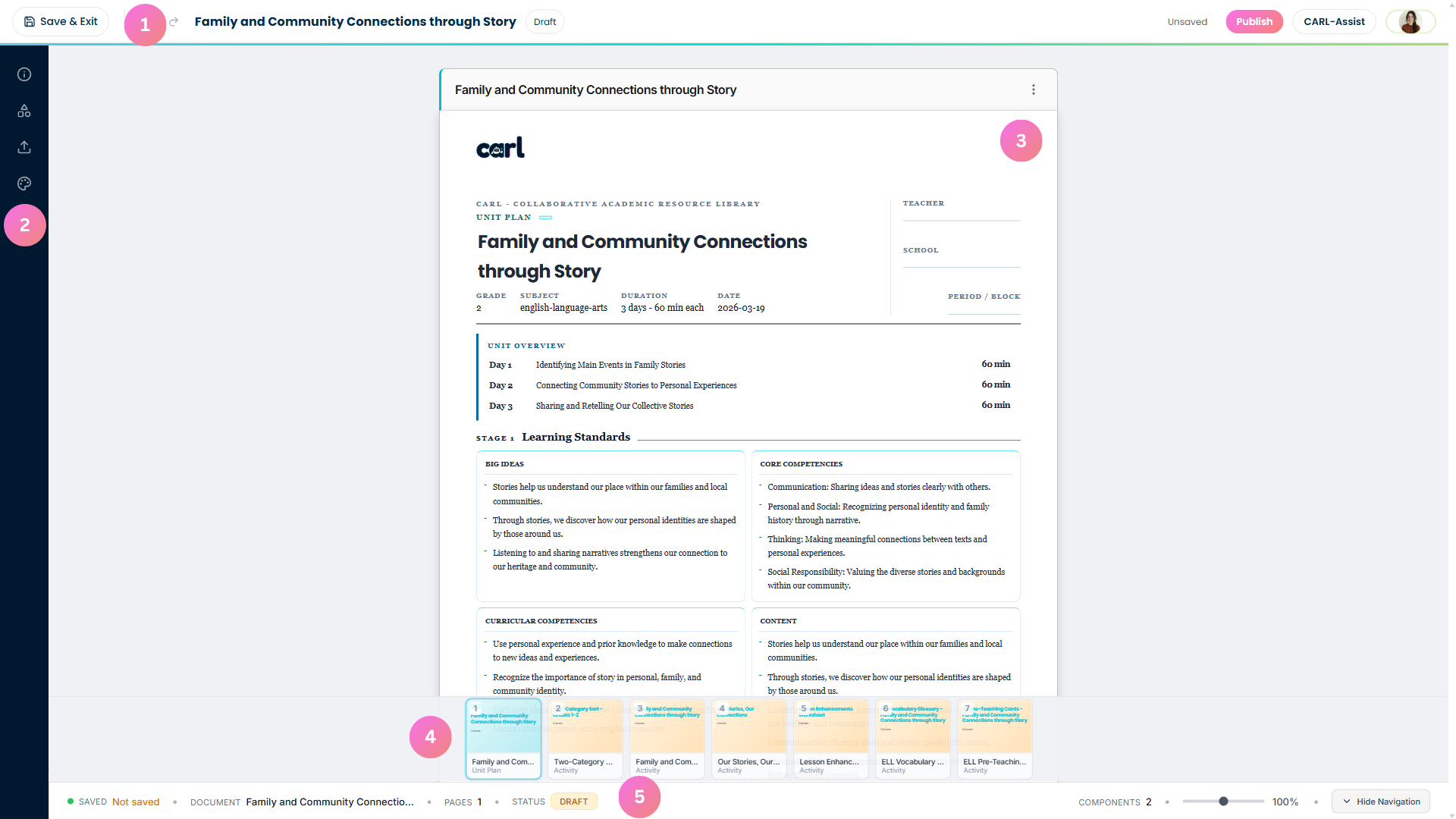
Click to enlarge
| # | What It Is | What It Does |
|---|---|---|
| 1 | Top Toolbar | Save, undo/redo, publish, and access CARL-Assist |
| 2 | Left Sidebar | Access panels for Lesson Info, Blocks, Uploads, and Customize |
| 3 | Main Content | Your lesson — click anywhere to edit |
| 4 | Component Tabs | Switch between your unit plan, activities, and resources |
| 5 | Status Bar | See save status, page count, and zoom controls |
Setting Up Your Curriculum
Do this once before your first lesson. Setting your default curriculum means every lesson you create is automatically aligned to your province's standards — no manual selecting required each time.
Step 1: Open Settings
Click your profile icon in the top-right corner of the dashboard, select Settings, then click the Curriculum tab in the left sidebar.

Click to enlarge
Steps 2 & 3: Choose Your Province & Framework
Select your province, then choose the specific curriculum framework you teach to. CARL will use this as the default alignment for every new lesson.

Click to enlarge
| # | Setting | What to Do |
|---|---|---|
| 1 | Provincial Framework Dropdown | Select BC, Alberta, or Ontario. Alberta teachers will see two options (2005 and 2025) — check which version your school is currently using. |
| 2 | Custom Curriculum Upload | Have a custom scope and sequence, district framework, or school-specific doc? Upload it here and CARL will reference it alongside the provincial alignment. |
Step 4: Save Your Settings
Hit Save and you're done. Every lesson you create from here on will automatically align to your chosen curriculum.
Meet CARL-Assist: Your AI Co-Pilot
Click the star icon in the top-right corner of the editor to open CARL-Assist — your AI-powered teaching assistant.

Click to enlarge
| # | Tool | When to Use It |
|---|---|---|
| 1 | Review with Carl | Get AI feedback on alignment, clarity, and completeness before publishing |
| 2 | Ask Carl | Quick questions or small edits — e.g. "Make this more engaging for kinesthetic learners" |
| 3 | Section Editor | Use AI to edit and improve specific sections of your lesson |
Components & Resources Tab
Click the blocks/grid icon in the left sidebar. This is your content insertion hub.

Click to enlarge
| # | Button | What It Does |
|---|---|---|
| 1 | Browse Components | Opens the activity and worksheet browser to add ready-made content |
| 2 | Browse Teaching Resources | Access teaching enhancements and ELL support materials |
| 3 | Insert Logo Header | Add your school's branding to the lesson |
Browse Components & Activity Preview
Click Browse Components to find and add worksheets and activities to your lesson.

Click to enlarge
| # | Filter | How It Helps |
|---|---|---|
| 1 | Subject Filters | Filter by Math, Science, ELA, Social Studies, Arts, Music, and Assessment |
| 2 | Grade Filters | CARL shows your current grade level ±1 to give you more options |
| 3 | Discover / My Worksheets / Saved | Browse the library — saving and custom templates coming soon! |
| 4 | Activity Preview Button | Preview the worksheet before adding it to your lesson |
Activity Preview Modal
Click Preview on any worksheet to inspect it before adding. The modal offers three viewing modes so you know exactly what you'll get.

Click to enlarge
| Mode | What You See |
|---|---|
| Student | Only the student-facing content — exactly what students will see and work on |
| Guide | Facilitator instructions, answer keys, and facilitation notes |
| Both | Student content alongside teacher guidance for easy comparison |
Teaching Resources
Click Browse Teaching Resources to open the Teaching Resources drawer. Use the tabs at the top to switch between Unit & Lesson Enhancements and ELL Supports.
Unit & Lesson Enhancements
Six AI-powered modules that generate targeted teaching supports. Select the enhancements you want, then click "Generate enhancements."

Click to enlarge
| Module | What It Generates |
|---|---|
| UDL & Differentiation | Multiple ways to access content and demonstrate learning |
| Equity & Inclusion | Diverse perspectives, cultural responsiveness, accessibility notes |
| SEL Focus | Regulation strategies, reflection prompts, climate support |
| Student Voice Action | Choice points, co-design opportunities, student input moves |
| Trauma-Informed Safeguards | Predictability cues, privacy protections, emotionally safe paths |
| Indigenous Voice Inclusion | Teacher-only IVI review and local context considerations |
ELL Supports
Switch to the ELL Supports tab to generate targeted materials for English Language Learners. Add the languages spoken by students in your class, assign proficiency levels, select what you need, and click "Add ELL Resources."

Click to enlarge
| Resource | Format | Description |
|---|---|---|
| ELL Translated Glossary | Print or Digital | Key vocabulary with definitions, visuals, and translations |
| Pre-Teaching Cards | Print-ready | Bilingual flashcard-style concept cards with visual scaffolds and sentence starters |
| Facilitator Guide | Print-ready | Teacher-facing guide with ELL-specific instructional moves and timing notes |
| Family Bridge | Take-home | Summary translated for families with conversation prompts |
Add multiple languages — CARL generates resources for all of them at once.
Lesson Info, Metadata & Tags
Step 1: Open the Lesson Info Tab
Click the info icon in the left sidebar to see a quick overview of your lesson's essential details.

Click to enlarge
| # | Item | What It Shows |
|---|---|---|
| 1 | Metadata & Tags | Click here to edit your lesson's metadata and organizational tags |
| 2 | Current Tags | Tags currently applied to your lesson — CARL auto-generates these |
| 3 | Lesson Snapshot | Quick summary of key lesson attributes |
Step 2: Edit Metadata
Click Metadata & Tags to open the Metadata drawer. Here you'll find detailed lesson information organized into four tabs.

Click to enlarge
| Tab | What's Inside |
|---|---|
| Overview | Lesson description, difficulty level, duration, and learning outcomes |
| Standards | Curriculum standards and alignment information |
| Resources | Supporting materials and links |
| Support | Additional support documentation |
Step 3: Edit Tags
Switch to the Tags tab to manage how your lesson is organized. Good tagging helps you and your colleagues find and reuse lessons easily.

Click to enlarge
| # | Feature | What It Does |
|---|---|---|
| 1 | CARL's Recommendations | AI-suggested tags based on your lesson content (e.g. "Project-Based Learning," "Visual Supports") |
| 2 | Refresh Recommendations | Regenerate AI tag suggestions after making significant changes to your lesson |
| 3 | Manual Tags | Tags you've added yourself for curriculum alignment, grade level, subject, etc. |
| 4 | Manual Tags Menu | Add tags for scope, standards, assessments, and more |
Split/Multi-Grade Classes
Teaching a combined class? CARL handles it.
Step 1: Select Split/Multi-Grade

Click to enlarge
Click the Split / Multi-Grade button when selecting your grade level.
Step 2: Choose Both Grades

Click to enlarge
Select your lower grade and higher grade.
Step 3: Set Goals for Each Grade

Click to enlarge
CARL gives you separate goal fields for each grade level. Click Get CARL's Input if you need help writing differentiated goals.
Language Immersion Options
Creating lessons in French or Spanish? CARL offers three immersion levels. The language dialog appears automatically when you select your subject.

Click to enlarge
| Level | What It Means |
|---|---|
| Full Immersion | Entire lesson in the target language — both the facilitator guide and all student materials. Best for French Immersion programs or dedicated language classes. |
| Student Sheet Only | Student materials in the target language, facilitator guide stays in English. Great for teachers who plan in English but support language learners. |
| Partial | Primarily English with target language vocabulary and key terms woven throughout. A natural fit for introductory world language courses. |
Generate a Facilitator Guide
Every activity can have a teacher-facing Facilitator Guide.
Step 1: Click Generate

Click to enlarge
Scroll to the bottom of any activity and click Generate Facilitator Guide.
Step 2: Review the Guide

Click to enlarge
| # | Section | What's Inside |
|---|---|---|
| 1 | Facilitation Notes | Step-by-step instructions with timing |
| 2 | Materials & Guiding Questions | What to prep and what to ask |
Step 3: Use Differentiation & Assessment

Click to enlarge
| # | Section | What's Inside |
|---|---|---|
| 1 | Differentiation Strategies | Tiered supports: Approaching, On Track, Advanced, ELL |
| 2 | Assessment Criteria | Ready-to-use rubric (Beginning → Extending) |
| 3 | Teacher Tips | Practical classroom advice |
Customize Your Look
Click the palette/brush icon in the left sidebar to personalize your lesson's appearance.

Click to enlarge
Logo Options
| Option | What It Does |
|---|---|
| Upload School or Personal Logo | Add a custom logo or image (max 2 MB) |
| Logo Scope | Apply to current page only or all pages |
| Preset Logos | Choose from CARL's preset logo options |
| Your Logos | Access previously uploaded logos |
Typography
| Option | What It Does |
|---|---|
| Headings | Choose from 17 professional fonts for titles and headers |
| Body Text | Select fonts for main content text |
Quick Reference: Where to Find Things
| I want to... | Go here |
|---|---|
| Get AI help with my lesson | CARL-Assist (star icon, top toolbar) |
| Add an activity or worksheet | Blocks tab → Browse Components |
| Preview a worksheet before adding | Browse Components → Preview button |
| Generate unit & lesson enhancements | Blocks tab → Browse Teaching Resources → Lesson Enhancements tab |
| Create ELL materials | Blocks tab → Browse Teaching Resources → ELL Supports tab |
| View or edit lesson metadata | Lesson Info tab → Metadata & Tags |
| Add or refresh lesson tags | Lesson Info tab → Edit Tags |
| Create a split-grade lesson | Grade selection → Split/Multi-Grade |
| Create a lesson in French or Spanish | Subject selection → Language options dialog |
| Get a teacher guide for an activity | Activity → Generate Facilitator Guide |
| Add my school logo or change fonts | Customize (palette icon, left sidebar) |
You're Ready!
Start creating your first lesson and continue exploring CARL's features. We will continue making improvements based on your feedback!
Still need help?
Contact Support