

Adding Components & Facilitator Guides
Add ready-made worksheets and activities to your lesson — then generate a teacher-facing Facilitator Guide for any activity with one click.
What's a Facilitator Guide?
It's a teacher-only document CARL generates for any activity you add to your lesson. It includes facilitation notes with timing, differentiation strategies for Approaching, On Track, Advanced, and ELL students, a rubric, and teacher tips — all written specifically for that activity, not your lesson as a whole. This is where a lot of your UDL and differentiation support lives.
Finalize Your Lesson First
Components generate based on your lesson content. CARL reads what you've written and fills templates with aligned material, so the more complete your lesson plan is before you start browsing, the better your results will be.
Open & Browse the Library
Click the blocks/grid icon in the left sidebar to open the Components & Resources tab, then click Browse Components. This opens the activity drawer on the right side of the editor — your full library of worksheets, quizzes, graphic organizers, reflection prompts, and more.
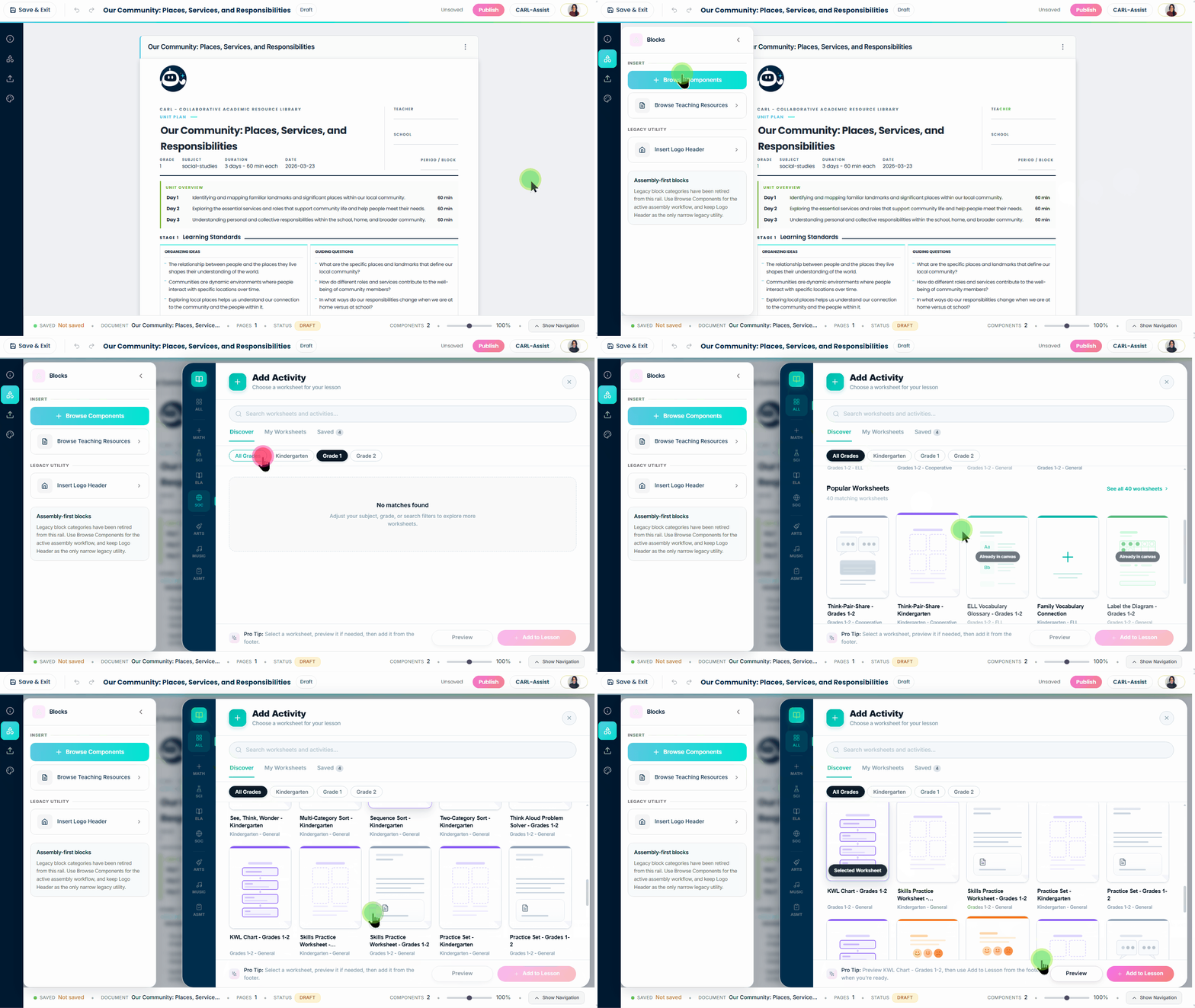
Click to enlarge
Filter the Library
Use the filters to narrow down the library to what fits your lesson.
| Filter | How It Works |
|---|---|
| Subject icons | Filter by Math, Science, ELA, Social Studies, Arts, Music, Assessment, or General |
| Grade buttons | CARL shows your current grade level ±1 to give you more variety and options |
| Discover | Browse the full library of available worksheets and activities |
| My Worksheets | Access worksheets you've created — coming soon |
| Saved | View worksheets you've saved for later — coming soon |
Preview & Add to Your Lesson
Before adding any worksheet, click the Preview button to inspect it first. The Activity Preview modal shows you the activity template — the layout, structure, and sections — so you know what you're getting before CARL fills it with your lesson content.

Click to enlarge
| View Mode | What You See |
|---|---|
| Student | The student-facing activity layout — the sections and format your students will work through |
| Guide | The Facilitator Guide layout |
| Both | Student activity and guide side by side |
Add to Your Lesson
Once you've found a worksheet you want to use, select it and click Add to Lesson. CARL fills the template with content aligned to your lesson automatically — no manual setup required to get started.
The component appears in your lesson as its own activity block. You can edit any part of it, reorder it, or remove it at any time.
Generate a Facilitator Guide
Every activity you add can have its own teacher-facing Facilitator Guide. This is separate from the student worksheet — it's built for you, not your students, and gives you everything you need to run the activity confidently.
Scroll to the bottom of any activity block and click Generate Facilitator Guide. CARL builds it automatically using your lesson content and the specific activity type.

Click to enlarge
What's Inside a Facilitator Guide
Everything in the guide is written for this specific activity — not your lesson or unit as a whole. That means the differentiation strategies, rubric, and facilitation notes are grounded in what students are actually doing in that worksheet, not generic advice that could apply to anything.
| Section | What's Inside |
|---|---|
| Facilitation Notes | Numbered steps for running the activity, each with a suggested time so you can pace the lesson |
| Materials & Guiding Questions | What to prepare beforehand, plus discussion questions to use during the activity |
| Common Misconceptions | What students often misunderstand about this topic, and how to redirect their thinking |
| Differentiation Strategies | Specific supports for Approaching, On Track, Advanced, and ELL students — written for this activity |
| Assessment Criteria | A rubric across Beginning, Developing, Proficient, and Extending — based on the activity's learning goals |
| Teacher Tips | Practical classroom advice based on the activity type |
Ready to Explore the Library?
Open your lesson, finalize your content, and start browsing. Generate a Facilitator Guide after you've added your first activity.
Still have questions?
Contact Support