

Saved Class Profiles
Save your class details once and reuse them every time you create a lesson. CARL pre-fills the wizard with your settings so you can skip straight to the content.
What's a Saved Class Profile?
It's a snapshot of your classroom context — grade, subject, tech setup, learner needs, and more. Once saved, CARL pulls it into the lesson creation wizard automatically, so you don't have to re-enter the same details every time. Create one profile per class and switch between them as needed.
Find Saved Class Profiles
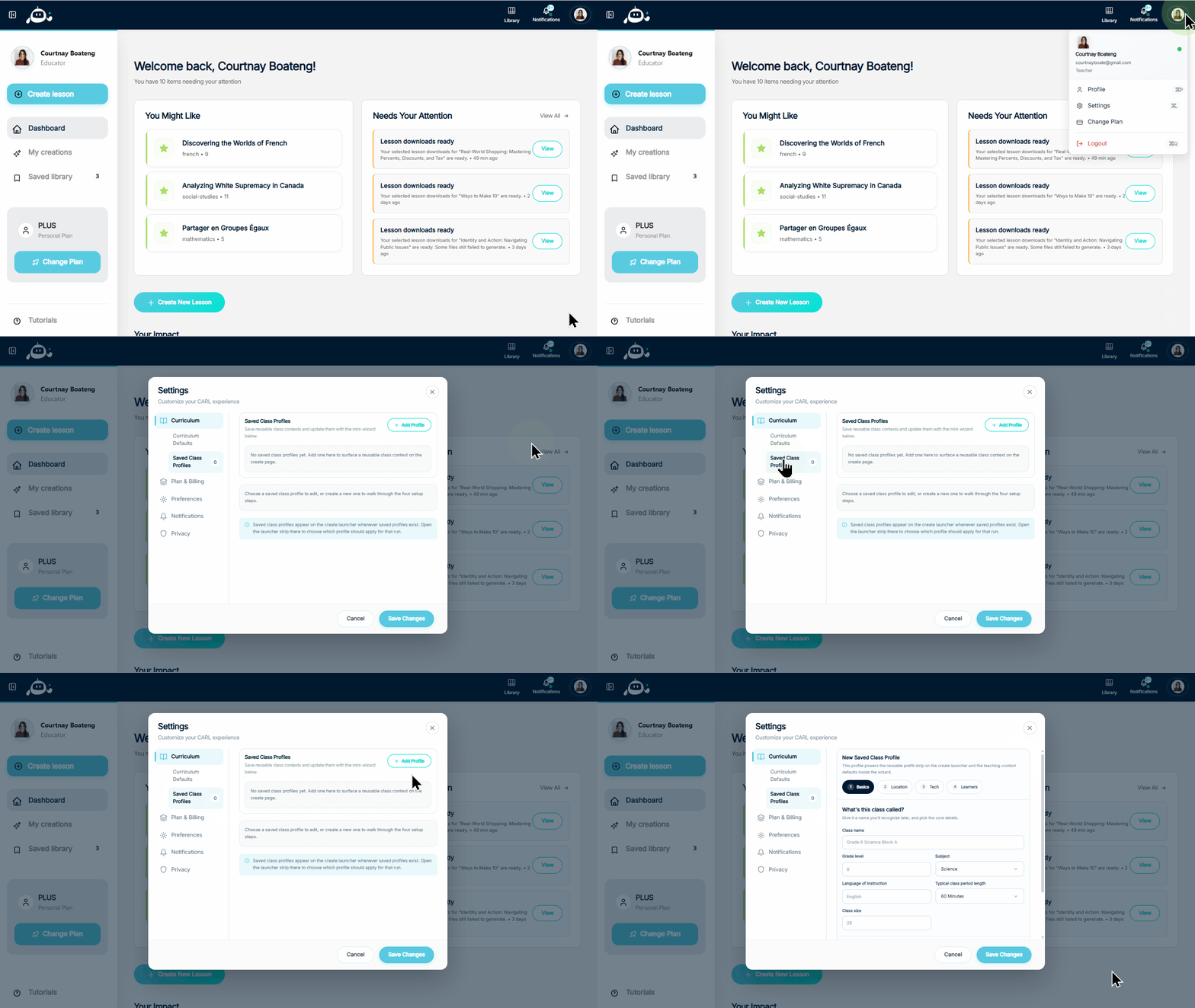
Open Settings — either from the bottom-left of the dashboard sidebar, or by clicking your profile image in the top-right corner of the screen. Select the Curriculum tab, then click Saved Class Profiles in the submenu. Click Add Profile to create a new one.
Click to enlarge
Fill Out Your Class Details
Walk through the four setup steps. The more detail you provide, the better CARL can tailor every lesson to your specific classroom.
| Step | What You'll Set |
|---|---|
| Basics | Class name, grade, subject, language, period length, and class size |
| Location | Indoor, outdoor, or virtual setting and room type |
| Tech | Presentation equipment, student devices, platforms, and internet reliability |
| Learners | IEP, reading level, attention and executive function, enrichment, behaviour and SEL considerations, plus free-text notes |
Save Your Profile
When you're done filling in your class details, you need to click two buttons to save everything properly.

Click to enlarge
Select Your Profile When Creating

Click to enlarge
Go to the Create page and choose your creation method — Start from Scratch, Upload & Enhance, or Chat with CARL. Click the Choose teaching profile strip at the bottom of the card, then select your saved class from the dropdown. Your profile is now active for this lesson.
Fill In the Essentials, Then Skip Ahead

Click to enlarge
With your profile selected, enter your Topic, Learning Goal, and Success Indicators. Since CARL already knows your class details from the profile, you can click Skip to Review to jump straight to generating your lesson — no need to re-enter grade, subject, or context every time.
Set It Once, Skip It Every Time
Head to Settings, create your first profile, and knock out that first lesson in half the time.
Still have questions?
Contact Support